Experimental R-Wave Amplitude Coherence (RWAC) Application User Guide
Contents
- Introduction & launching the application
- Parameters
- Working with the RWAC Application (User Interface)
- Breath Counting Functionality
- Report Functionality
Introduction
This guide introduces the experimental R-wave Amplitude Coherence biofeedback application, part of the Mind-Body Training Tools suite.
The application is designed to train an experimental parameter that is similar to Heart Coherence, but instead of simply tracking inter-beat interval and looking at how IBI varies over time, we look at the amplitude of the R-wave (derived from ECG).
The guide has two purposes: firstly to explain the parameters involved and how they are measured and calculated, and secondly to teach you how to use the software.
The application monitors both heart activity via ECG, and breath. (A PPG sensor is not adequate for this application.) Breathing can be measured via temperature of the inhaled and exhaled air, or by using a strain gauge belt.
The guide assumes that you already have a basic knowledge of how to work with Mind-Body Training Tools software. If not, I suggest you read this Introductory Guide to Working with MBTT.
Launching The Application
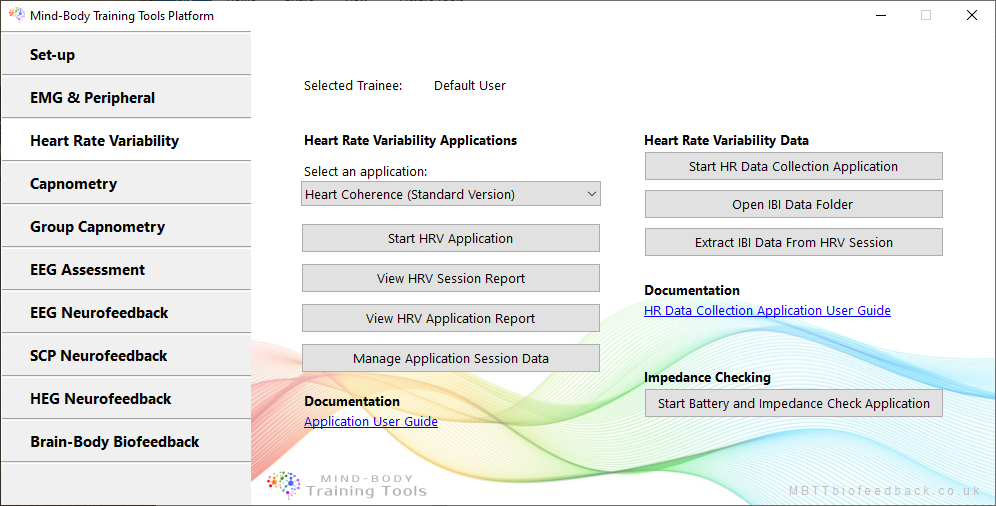
To launch the application (after starting the Platform program) first click on the "Heart Rate Variability" tab, then select the "R-wave Amplitude Coherence" application from the drop-down list, then click the button to launch the app. This launches the BioEra-based biofeedback app.
Parameters
This section explains the physiological parameters measured by the application.
Input Parameters
Heart activity is measured using an ECG (electrocardiograph) device. ECG is a measure of electrical voltage, very similar to EMG and EEG, with two active sensors (electrodes) that can be attached to the skin anywhere either side of the heart (e.g. one on each wrist). A third sensor, the ground, can be placed anywhere. You can read more about ECG measurement here - bear in mind PPG sensors cannot be used for this application.
Before running the application you must select a suitable device type as the “Heart Rate Source”. (Device set-up is made from the set-up screen of the Platform and is covered in the Installation and Set-up Guide).
Breathing data can be derived from either a temperature sensor held at the nostril, or from the more usual strain-gauge belt. Personally I've found the former to be the more robust and reliable. You can read more about breathing measurement in MBTT here.
Feedback Parameters
From the two input signals, the application calculates the following parameters:
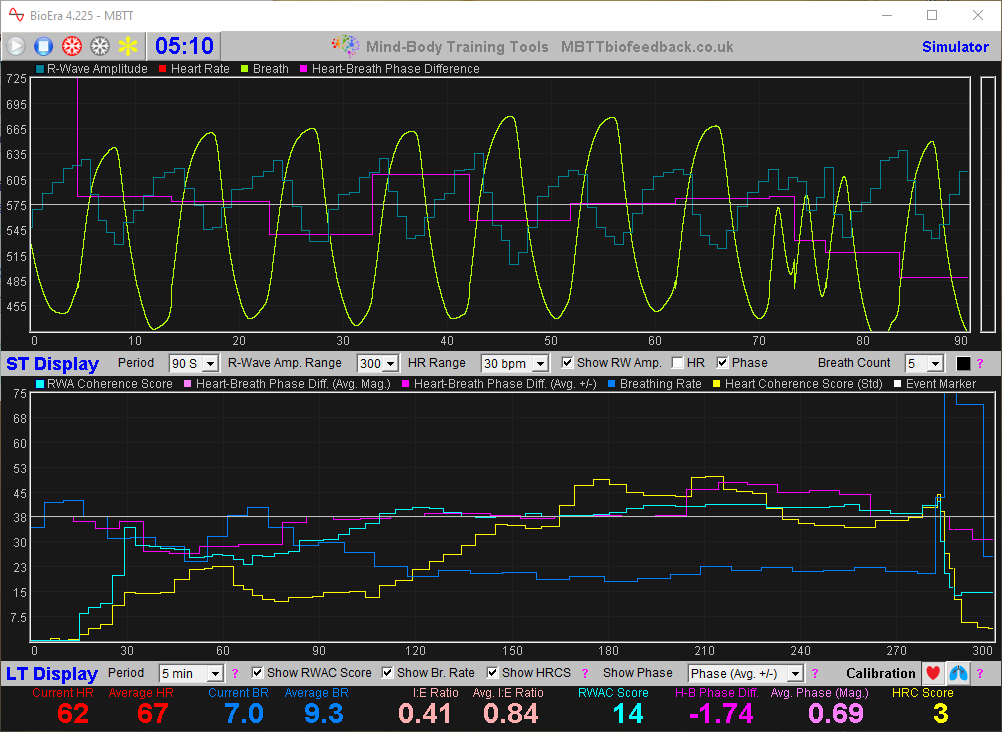
- R-wave amplitude on a beat-by-beat basis. The R wave is the large, sharp spike that dominates the ECG trace (the full heart cycle is known as PQRS wave). R wave amplitude is the height of the spike
- Heart rate is also measured beat by beat but is not really used for feedback.
- “R-Wave Amplitude Coherence Score” - RWA coherence is an experimental concept that builds on the notion of heart coherence. We use the same algorithm as heart coherence score, but using R-wave amplitude in place of inter-beat interval. This article describes how MBTT quantifies heart coherence, also RWA coherence.
- Heart-Breath Phase Difference (the phase lag in seconds between the “” and the breath, measured at the top of the breath or beginning of exhalation).
- Standard Heart Coherence Score (the same as is used in the Heart Coherence apps).
- Breathing Rate.
- Inhalation to Exhalation Ratio or I:E Ratio (calculated and displayed but not used for feedback).
Working With The RWAC Application (User Interface)
The MBTT apps have a common design scheme. The intent is that learning to use one app, can be generalised so that other apps in the suite are easy to learn.
The apps generally have three windows:
- Main window, or trainer's window, containing parameter charts
- Threshold window - each app has at least one threshold, but there are usually more.
- Feedback window - in a sense, all charts and thresholds are giving feedback, but the feedback window contains controls for audio feedback plus more specialised feedback forms.
Main Window
The main screen looks like this:
TO_DO
Threshold Controls
In biofeedback, physiological parameters are mapped into visual or auditory form, so that the trainee can perceive changes directly through his senses. Feedback can be continuous and proportional to the parameter, or it can be discrete and dichotomous, for example a bell sounds whenever breathing rate rises above some limit.
Thresholds are the means of configuring the mapping, meaning they define how much of the parameter results in how much feedback.
The principles of thresholding and feedback are described in greater detail in this guide.
The RWAC app has four thresholds, shown below.
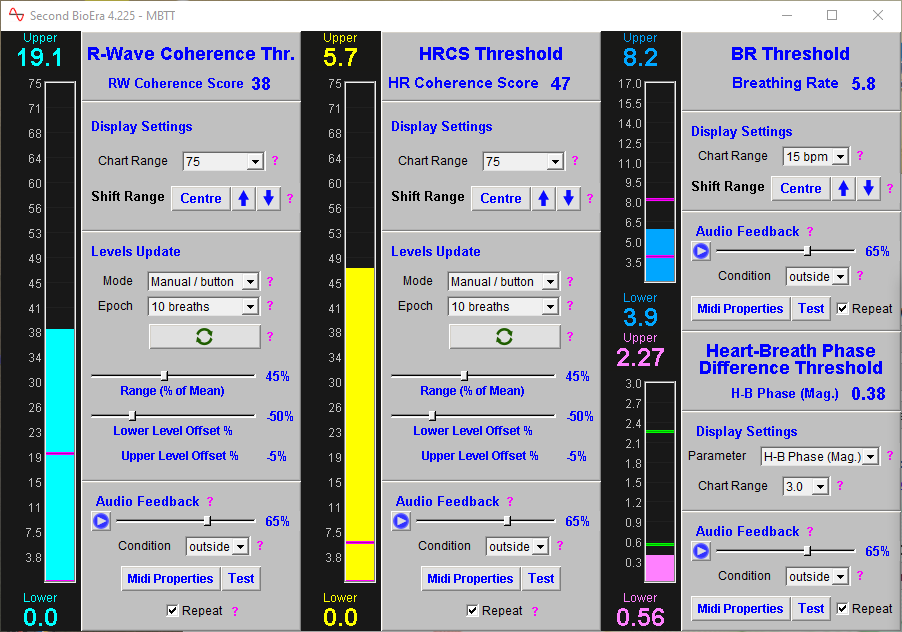
All these thresholds offer automatic calculation of threshold levels based on criteria you set.
Audio Feedback
The application offers midi feedback and threshold-based contingent audio feedback. Additionally, you can transmit feedback parameters out of BioEra, for use with external feedback applications. In particular you can use the Breath Player utility, which is part of the MBTT Platform program.
Threshold-Based Audio Feedback
To recap, the basic concept is that the software plays a sound (actually a midi note) whenever a threshold limit (level) is crossed.
The controls for threshold based feedback are found at the bottom of the threshold controls. There is a button to activate it / turn it off. A drop-down control sets the condition or contingency: for example if set to “above”, the feedback will sound whenever the parameter exceeds the upper level. “Below” means it sounds below the lower level, and “outside” means it sounds for either of these two.
You can change the midi “instrument”, and you can have the sound repeat for each breath that meets the threshold condition, or only the first time the level is crossed.
Audio Feedback Window
The controls for audio feedback, aside from the threshold-based audio feedback discussed above, are found in a separate window shown below:
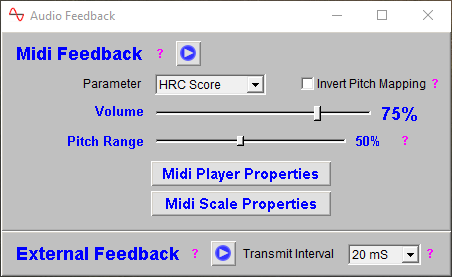
In midi feedback, a musical note is played whose pitch varies with the selected feedback parameter. You can select which parameter to use as the basis of feedback using a drop-down list control, and you can invert the pitch mapping if you wish, so that a higher reading produces a lower tone.
Breathing Tone Feedback
Breathing tone is a particularly powerful feedback modality if you want to train with biofeedback in a more meditative context, or during mindfulness practice.
In breathing tone biofeedback, a tone is played which follows the breath. The pitch gently ascends and descends in pitch for each inhalation / exhalation respectively. (Each breath has a relatively narrow range in pitch.) The tone sounds during the movement of the breath, and falls silent at the turning points.
At an overarching level, the pitch varies with the selected feedback parameter. For example, you can set the breathing tone feedback to track breathing rate. If your breathing speeds up (perhaps when you've become distracted) the tone will rise in pitch.
MBTT's breathing tone feedback feature is part of the Platform program. To use it you have to transmit data out of the BioEra app (by clicking on the External Feedback ‘Play’ button in the above audio feedback window). For more details on how to work with breathing tone feedback, see this guide on the MBTT Breath Player Utility.
Audio feedback is demonstrated in the following video TO_DO.
Breath Counting Functionality
In keeping with other applications which measure breath, the heart coherence app offers breath counting functionality. This is useful in a context of meditation practice (with breath as the object of focus) where the meditator counts breaths up to a target of say, ten. Distraction and mind-wandering cause the meditator to lose count, and perhaps to lose awareness of the breath completely. The user presses the space bar to start a count, and then again when the target is reached. The software tracks the breath count too, but is not prone to distraction, and thus can judge the meditator's performance.
Breath counting functionality is discussed in more depth in the Guide to Working with MBTT Apps.
Report Functionality
Mind-Body Training Tools allows you to generate session reports and application reports.
The controls for report generation are found in the platform window, in the Capnometry tab shown towards the beginning of this document. You need to have selected the right application from the drop-down list - in this case Basic Capnometry.
A session report shows charts and tables for the feedback parameters summarising the whole session. You'll be asked to select one particular session, and given report options. The options dialog looks like this:
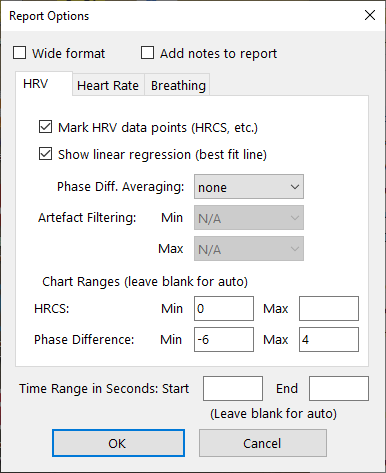
The application report shows the variation of the feedback parameters across multiple sessions. Typically for each feedback parameter, the software generates line charts for session means, session maxima and session minima.
Report functionality is described in greater depth here.
You can see sample reports here: