TO_DO Application User Guide
Contents
- Introduction & launching the application
- Input Parameters
- Feedback Parameters
- Working with the TO_DO Application (User Interface)
- Audio Feedback
- Breath Counting Functionality
- Report Functionality
Introduction
This guide introduces the TO_DO biofeedback application, part of the Mind-Body Training Tools suite.
The application is designed to train TO_DO.
The guide has two purposes: firstly to explain what TO_DO actually are and how they are measured, and secondly to teach you how to use the software.
The application monitors both TO_DO.
In keeping with others in the suite, the TO_DO application was designed to support your aims, not to supplant them. Achieving good TO_DO scores is not necessarily the most important thing. Biofeedback should enhance or expand your subjective awareness rather than detract from it.
The guide assumes that you have read the introductory pages on this site, e.g. the Software Installation and Set-up Guide, and have successfully set up the software.
The application works with several devices. For an up to date list of supported hardware, please see TO_DO.
Launching The Application
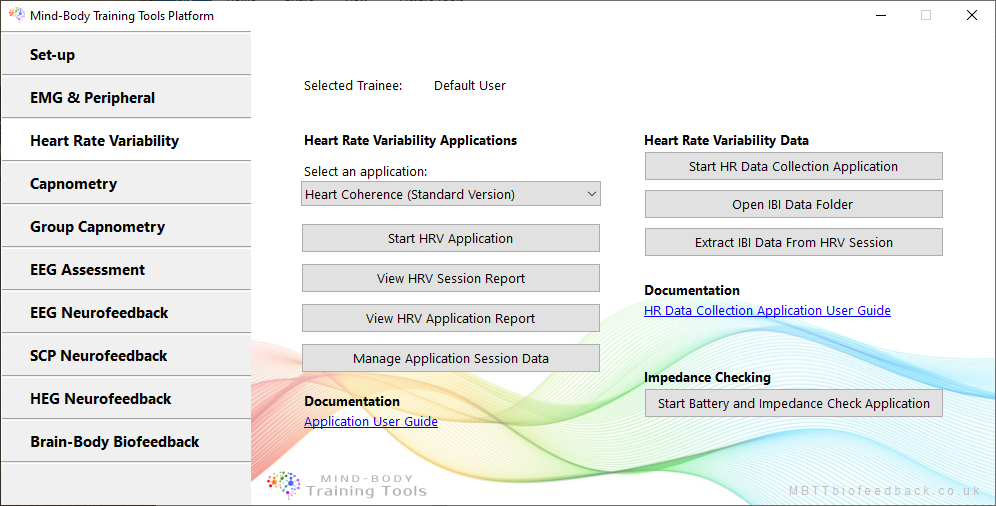
To launch the application (after starting the platform program) first click on the "Heart Rate Variability" tab (1 above), then select the "Heart Coherence" application from the drop-down list (2 above) then click the button to launch the app (3 above).
Make sure you have your BioEra licence key (dongle) inserted into a USB socket.
Parameters
This section explains the several physiological parameters used in the application.
Input Parameters
TO_DO
Feedback Parameters
From the two input signals, the application calculates the following parameters:
- TO_DO
- TO_DO
TO_DO
Working With TheTO_DO Application (User Interface)
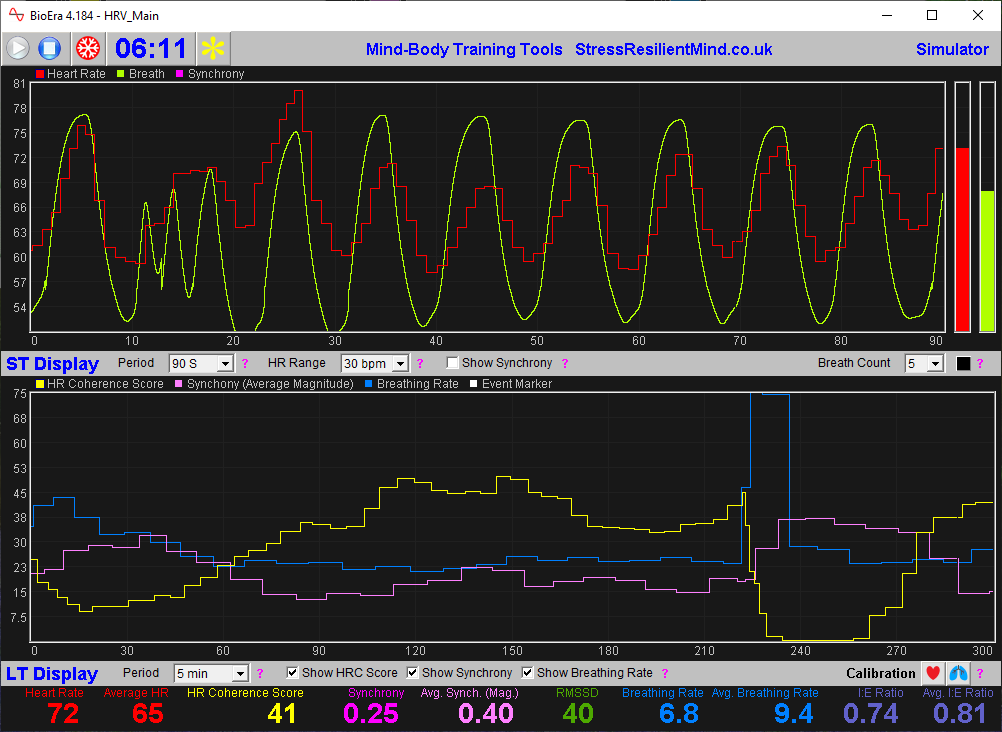
TO_DO
Threshold Controls
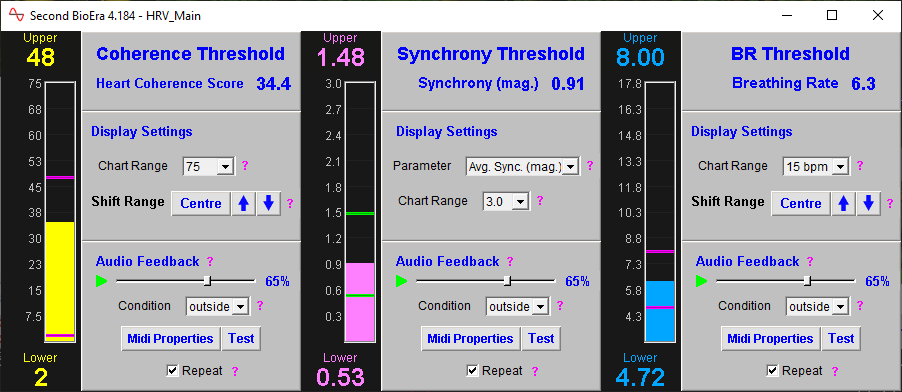
Audio Feedback
TO_DO
Breath Counting Functionality
TO_DO.
Report Functionality
Mind-Body Training Tools allows you to generate session reports and application reports.
The controls for report generation are found in the platform window, in the TO_DO tab shown towards the beginning of this document. For TO_DO reports, you need to have "TO_DO" selected in the drop-down list control (2). Then click button 3 for a session report, or button 4 for the application report.
A session report shows charts and tables for the feedback parameters summarising the whole session. You'll be asked to select one particular session, and given report options. You can also add notes which are recorded.
The application report shows the variation of the feedback parameters across multiple sessions. Typically for each feedback parameter, the software generates line charts for session means, session maxima and session minima.
Report functionality is described in greater depth in this article TO_DO.
Sample TO_DO Session Report TO_DO
Sample TO_DO Application Report TO_DO