Guide to Feedback Screens in the MBTT EEG Neurofeedback Application
Contents
- Introduction
- Conceptual Foundations: Classes of Feedback
- What Kind of Feedback Works Best?
- User Interface: Selecting a Feedback Screen
- External Feedback Apps
- Common User Interface Elements
- Feedback Screens Listing
Introduction
This guide is part of a set that teaches you how to use Mind-Body Training Tools for EEG neurofeedback. It builds on the foundation presented in the EEG Neurofeedback Training App User Guide (which you are strongly recommended to read first).
As described in the main EEG neurofeedback user guide, running a neurofeedback session in MBTT requires the practitioner to make two key decisions:
- what protocol to employ
- what form of feedback to use.
Protocols are described in the Guide to MBTT EEG neurofeedback protocols. This document covers the second decision, what form of feedback to use.
Feedback in its most general sense is information about how well you're performing some particular skill, that enables adjustments and improvements to the performance based on learning. More specifically, in neurofeedback training, feedback is what the software presents to the trainee to see or hear. Changes in this feedback convey the information that enables learning.
A key principle of feedback is that it should (ideally) help to motivate the trainee in some way, i.e. it should incorporate a reward for “success”. Having the experience of reward makes learning more efficient in some sense.
The main part of the guide describes the individual options that you can select from, but first we present a foundation that covers the different classes of feedback.
Conceptual Foundations: Classes of Feedback
To repeat, feedback is that part of the neurofeedback process which presents information to the trainee in some sensory form. Feedback can be visual, e.g. a graph that goes up or down, or a video, or a game. Or feedback can be auditory – a sound with varying volume or pitch. More specifically, changes in the EEG training parameter are reflected as changes in the visual or auditory presentation.
Reward or Punish?
A key principle of feedback is that it should (ideally) help to motivate the trainee in some way, i.e. it should incorporate a reward for “success”. The feedback should be pleasant, or desirable in some sense. Having this experience of reward facilitates learning, or makes it more efficient. For example, in simple video feedback, the video plays when the trainee is in the desired neurophysiological state, and stops when he drifts out of that state. We presume the trainee wants the video to play and not to stop.
Another way to motivate is to provide aversive feedback (which is unpleasant in some way) when the EEG training parameter moves in the “wrong” direction. Most neurofeedback practitioner training suggests not to use aversive feedback, but it could be argued it comes down to personal preference of the trainee. There is no doubt that aversive feedback or aversive feedback exists in nature and that animals can learn very effectively from it.
Also, some feedback is both rewarding and aversive at the same time - in our video example, the video playing is rewarding, and stopping is aversive. Which does the brain learn from? From a practical point of view it hardly matters.
Classes of Feedback
Whatever the medium of feedback, there are different classes of feedback:
- Dichotomous or Stop-go – our video example above is like this. Either the video is playing (when the parameter is above threshold) or it is stopped.
- “Points-based”. Feedback is a discrete event, such as the scoring of a point in a game, or a “pacman” eating the next cheese. The feedback event is triggered by the training parameter crossing the threshold (e.g. alpha amplitude exceeds 20uV).
- Proportional. For example suppose video is the medium of feedback, but this time the image brightness varies over a range. Instead of a discrete feedback event, (e.g. starting or stopping) the feedback is continuous but varies smoothly over a range. The video can be bright or dark or anywhere in between. This form of feedback mirrors the training parameter which also varies over a range.
There is no clear consensus in the field of neurofeedback as to which form works best. Probably a big factor is the personal preference of the trainee (whatever is the most engaging and motivating is likely to work best). Mind-Body Training Tools Neurofeedback app offers all three forms, and we cover the individual options below.
Review of Thresholds
It is worth reviewing the concept of thresholds again, as understanding them is necessary prerequisite for learning about feedback options.
Neurofeedback software must translate EEG parameters, or more specifically changes in EEG parameters, into feedback that is presented to the trainee's senses. Thresholds are software tools, that enable you to configure this mapping, meaning they define how much of the parameter results in how much feedback.
A “threshold level” is a marker of how much of the training parameter is enough to trigger feedback. This is perhaps easiest to grasp in the case of points-based feedback or stop-go feedback: when the parameter exceeds the level, a point is scored or the video starts playing. (You can of course train a parameter downwards, which would mean a point is scored when the parameter goes below the threshold level.)
Appropriate setting of threshold levels is key to using neurofeedback effectively. The main principle is that feedback should be balanced: not too challenging for the trainee, and not too easy.
In MBTT, you can set the levels “by hand”, or the software can calculate updates based on recent EEG data, and on criteria that you set.
Here is an example of an EEG threshold:
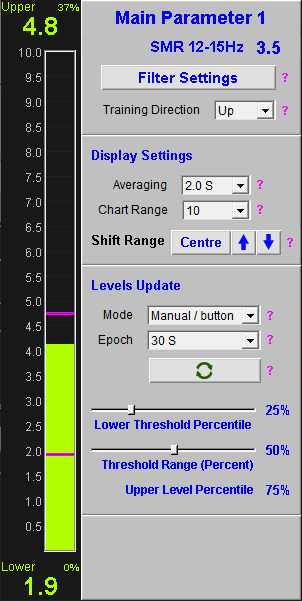
In MBTT most thresholds have two levels. (The two levels are the magenta-coloured bars, and at the top and bottom you see displayed the parameter values at which they are currently set.)
Having two levels may seem to complicate things, but it opens up the ability to offer genuinely proportional feedback. Two are needed to define a proportional mapping between the EEG parameter and the feedback.
In our example of video feedback with variable brightness, the idea is that the two threshold levels map to the points of maximum and minimum video brightness. When the parameter is between the two levels, the brightness is somewhere between miniumum and maximum. When the parameter is above the upper level, the brightness stays fixed at the maximum, and below the lower level brightness remains fixed at the minimum.
Feedback Latency & Audio Feedback
Feedback latency refers to the lag between an EEG event in the brain, and it's appearance in the feedback. There is inevitably some delay due to the need to measure and process the data, but ideally latency should be minimised.
When your computer plays a soundtrack, the sound card is sent packets of audio data one after another - these are called buffers. Neurofeedback software needs to compute the contents of one buffer, with data based on both the audio data and the current EEG, while another plays. As soon as one buffer has been calculated, it is sent and the next one is computed. To minimise latency, or the time lag between an EEG event and its feedback as sound, buffer duration must be minimal.
More About Points-Based and Dichotomous Feedback
To recap, in points-based feedback, the feedback is a discrete event such as a bell-ring whenever the threshold condition is met. This kind of feedback opens up possibilities for configuring feedback that aren't available for proportional feedback. In particular there are two features that MBTT neurofeedback software incorporates:
- Sustain Period - in order to gain feedback / score a point, the training parameter must be sustained at a level above (or below) threshold for a minimum period of time. Clearly the longer this period, the more challenging is the training.
- Refractory Period - immediately after a point has been scored, we can set a period of time during which further points cannot be scored. If the threshold condition is met again during this time, no feedback results (no point is scored). This allows a sort of reset period for the brain, and it's thought to increase learning efficiency.
The same settings can also be applied stop-go feedback.
Basic Protocols vs. Advanced Protocols: Number of Feedback Parameters
In MBTT there is a large set of preconfigured protocols which are classed as either basic (standard) or advanced. They differ in terms of the number of main feedback parameters.
Recall that in neurofeedback, “protocol” means the decision of:
- what particular EEG parameter to train (e.g. amplitude of the alpha frequency band)
- whether you want to enhance it or suppress it (i.e. train up or down)
- where on the head you wish to train it (including how many channels of EEG to use in training).
(Arguably a fourth element that defines a protocol is how long to train (within a session) and how to structure this time, e.g. 6 blocks of 2-minute training bursts, with rests between.)
We refer to the first of these elements, the EEG parameter that we want to influence, as the training parameter or as the feedback parameter.
Each feedback parameter has its own threshold.
In MBTT basic or standard protocols have only one main feedback parameter. Advanced protocols have two or more.
Working with More Than One Feedback Parameter
Suppose you're working with an advanced protocol that involves training more than one EEG parameter, e.g. you want to train beta amplitude up, and theta amplitude down. MBTT software would have two thresholds, one for beta amplitude and one for theta amplitude.
This is clearly more complex than just training a single parameter such as alpha amplitude. What does this mean for how we present feedback?
In principle, we have two choices:
- we can combine the two parameters into one, and present a single feedback as before, or
- we can independently feed back each parameter.
A Note on Terminology: Feedback Stream vs. Feedback Parameter
Now we are speaking of one feedback vs. two feedbacks, we need a new terminology to refer to this. I settled on "feedback stream". By this I mean the aspect of the actual feedback which is varying in a way directly perceivable by the senses. I want to distinguish this from "feedback parameter" which is the calculated EEG variable that gets mapped to the feedback.
Two feedback parameters could be for example theta amplitude and beta amplitude. Two feedback streams could be the brightness of a video and the volume of the video soundtrack.
Examples of Feedback
If we're using either stop-go or points based feedback:
- Combining into a single feedback stream would mean the feedback event is triggered by both threshold conditions being met simultaneously. For example, our stop-go video would play when beta amplitude is above its threshold level AND theta amplitude is below its threshold level, at the same time.
- Two independent feedbacks would mean that we could for example play two different contingent sounds; a high pitched piano note when beta is above threshold, and a low pitched note when theta is below threshold.
If we're using proportional feedback:
- Combining into a single feedback would mean we take an average of the two parameters, and feed back this average.
- Independent feedbacks would mean we could play two soundtracks simultaneously, one whose volume varied proportionally to theta amplitude, and a second whose volume varied with beta amplitude. The two soundtracks would have to complement each other: nature soundtracks work well in this respect. For example the sound of flowing water represents theta amplitude, and the sound of birds singing represents beta amplitude. It wouldn't make sense to use video feedback in this case because you can't really pay attention to both. However you could have video brightness linked to one parameter and video volume linked to the other.
What Kind of Feedback Works Best?
To repeat, there is no clear consensus in the field of neurofeedback as to what class of feedback works best, and to my knowledge there is little or no research that compares different types. That means it comes down to personal preference as to which you use. If you're a professional practitioner working with clients, then it's the client's preference that matters.
The remainder of this section should be taken as an expression of my personal viewpoint rather than “hard science”.
Remember a key principle for feedback is that it should in some way motivate the trainee to achieve a certain brain state, by offering something rewarding or desirable. Not all feedback is intrinsically rewarding. For example, perhaps the simplest kind of feedback is a tone that starts and stops when the threshold condition is met. Few would enjoy listening to a tone turning on and off, but it can work if the trainee can gain internal motivation or reward from knowing their brain achieved a little success.
At the other end of scale, you can use “shadow feedback” (described below) which varies the brightness of a video or other software on your screen. This can be anything you like - a video that naturally evokes interest and therefore motivation to make the screen go clear and bright.
Of course the advantage of basic feedback is its simplicity. Suppose you're training to improve focus and concentration. Working with a video that is naturally stimulating may be too easy to maintain focus, while a basic tone can be more challenging for being so boring. It really depends on the trainee.
Training “On Task”
It can be very useful to train with neurofeedback in a “real world” context which offers some form of cognitive challenge. For example, the Shadow Utility (see below) can work with any software that involves reading (e.g. Kindle reader app). Training on task may be best employed later in the process, in the “generalisation” phase.
Soundtrack Feedback
Several of the feedback options described later involve the use of soundtracks for audio feedback, in which volume is the feedback variable. In this case, careful choice of soundtrack would be judicious.
Since the volume changes convey information, we ideally want a soundtrack with a relatively constant volume, otherwise the real feedback information will be lost or not clear. This means that many forms of music are not really appropriate, however some is, perhaps most notably, ambient music. You can purchase your own mp3 soundtracks from your favourite online retailer. I suggest searching on things like “ambient music”, “music for sleep”, “music for meditation”, or “music for relaxation”.
Nature sounds also work well, for example the sound of rain, flowing water, birds singing, or ocean waves.
Reward vs. Warning
Another question that the software leaves to the practitioner's choice, is whether to use sound as a reward for entering the desired brain state, or as a warning when moving away from it. Probably most teachers in the field would say the former, but personally I like to use “warning” feedback. The sound itself doesn't need to be aversive or unpleasant (e.g. a blaring siren) but simply something the trainee understands as a warning. For example I have used a soundtrack of rain in the context of meditation practice.
User Interface: Selecting a Feedback Screen
To recap the process of running a neurofeedback (described more fully in the EEG Neurofeedback Training App User Guide), the user needs to first select a protocol, then click the ‘Run Training Session’ button. This opens a further dialog window:
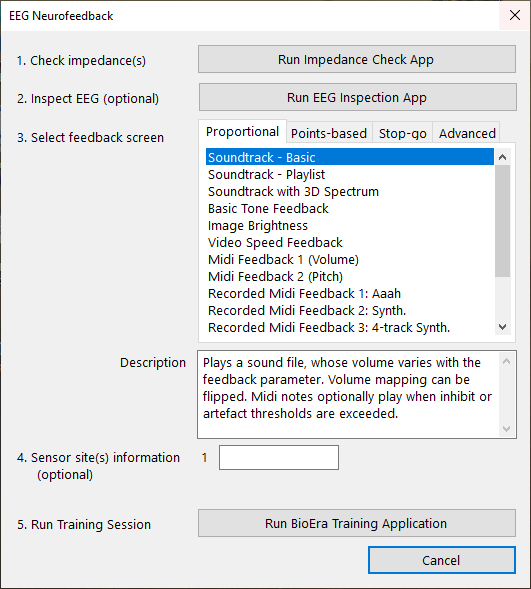
This dialog outlines the next five steps to running a training session. Step 3 is to select a feedback screen.
Once you've started a session, you can't change the feedback screen, except by ending your session and starting a new one.
In step 3 we have a list-box control showing all the available options. You click one to select it, then click ‘Run BioEra Training Application' to launch the session.
In the case that you're working with a standard or basic protocol, the list-box divides the screens into four tabs, one for each of:
- Proportional feedback screens
- Points-based feedback screens
- Stop-Go feedback screens
- Advanced screens which combine the classes of feedback.
If you've selected an advanced protocols, the options are going to look different, depending on which protocol you're working with.
External Feedback Apps
Recall that in within the MBTT software architecture, the actual EEG training app is built using BioEra. The feedback screens listed here are likewise built within BioEra. However BioEra allows for the training parameter to be transmitted out of BioEra so that it is available for other software programs.
The MBTT Platform program offers some possibilities for incorporating this transmitted data in feedback. At the time of writing there are three external feedback utilities. They can be launched using buttons located in the Set-up tab of the Platform program. They are described below.
More options are provided by other software products, for example Brain Assistant, a neurofeedback gaming software.
The “Shadow” Feedback Utility
Recall the example of a video which brightens or darkens proportionally with the variation of the feedback parameter. This form of feedback is implemented using the Shadow utility.
It works by creating a window which has variable opacity. You position this window over the top of another program running on your computer, for example a web browser showing a YouTube video, or a DVD player. Then, during a session, the underlying window is proportionally revealed or obscured as the shadow window varies its opacity.
The Shadow Utility is described in more detail here.
The Beat Player
The Beat Player utility generates audio feedback in the form of a rhythmic sound or beats. In addition you can use it to turn your computer monitor into a kind of strobe light, i.e. giving rhythmic flashes of light. In other words, the beat player is a kind of software Light & Sound machine, or Audio-Visual Stimulation (AVS) device, with the difference that the stimulation can convey feedback by varying pitch, volume or light intensity.
WARNING: YOU MUST NOT USE THE BEAT PLAYER IF YOU (OR YOUR CLIENT) IS PRONE TO SEIZURES, OR SENSITIVE TO STROBE-EFFECT LIGHTING.
Technical note: the audio beats are known as isochronic beats; the beat player can also be configured to play binaural beats (requiring headphones).
Beats and pulsed light may affect brain / mind state by causing entrainment, where EEG rhythms follow the pulsed stimulation. Alternatively AVS may possibly cause effects on the brain via dis-entrainment, or the suppression of EEG rhythms.
The Beat Player Utility is described in more detail here.
The Breath Player
The Breath Player is designed to give audio feedback in breathing training. It works by generating a tone which mirrors the breath - gently rising and falling in pitch and volume in step with the user's breath.
The Breath Player is less directly relevant to EEG neurofeedback because we aren't measuring the breath, but it can be used in ‘breath pacer’ mode.
The Breath Player Utility is described in more detail here.
Common User Interface Features & Elements
This section describes some of the features found in several of the screens. First we need to make an important point about the difference between enhancing and suppressing in the feedback screens.
Up-Training vs. Down-Training
Some of the MBTT protocols involve training the main parameter up (e.g. alpha up), while others train it down (or suppress it), e.g. the squash protocol. It's important to understand that while all of the points-based and stop-go screens take notice of the direction of training, several of the proportional screens don't. (It's largely the audio feedback ones that don't.) In this section I want to explain why that is, and how to work with proportional audio screens.
How Training Direction Bears Upon Points-based and Stop-Go Feedback
- If you're working with an up-training protocol, only the upper threshold level counts. When the feedback parameter goes above the upper level, feedback is triggered.
- If you're working with a down-training protocol, only the lower threshold level counts. When the feedback parameter drops below the lower level, feedback is triggered.
How Training Direction Bears Upon Proportional Training
To recap: in proportional feedback, the “amount” of feedback (e.g. volume or brightness) increases proportionally with the feedback parameter, up to a maximum at the upper threshold level. At least, that's the general pattern. Things are more complicated when you want to train down.
Another thing that complicates the story is that many of the proportional screens have an option to invert the feedback mapping - here is an example of a checkbox control that does this:

What this means is that when the option is checked, more parameter delivers “less” feedback (lower volume or brightness).
How to Use the Invert Option
- If you're up-training, and you want to reward increases in your parameter, you should not check the invert option.
- If you're down-training (e.g. squash protocol) and you want to reward decreases in the training parameter, then you should check the option.
- If you want to use the feedback in a different way, i.e. to warn that you're moving in the wrong direction, then it gets more complicated. It pays to think principially. When your parameter goes down, do you want more or less feedback? Suppose you're doing squash training and you want to use soundtrack volume to warn about increases. More parameter should give more volume - so you would not check the invert option.
Bar Chart
Most of the feedback screens incorporate a simple bar chart giving basic visual feedback of the main feedback parameter. It is scaled such that the top of the bar corresponds to the upper threshold level, and the bottom to the lower threshold level. The scaling changes whenever the threshold levels are updated so that this relationship always applies.
Sound Quality and Latency
Many of the feedback screens that deliver audio feedback (e.g. soundtrack) have controls that affect latency of feedback and also audio quality.
Recall that latency is the lag between an EEG event in the brain, and it's appearance in the feedback. The inevitably delay is due to the need to process the data, but ideally latency should be minimised.
Audio data is sent to your computer's sound device (hardware) in packets called buffers. The software needs to compute the contents of one buffer, using both the audio data and the current EEG, while another plays. As soon as one buffer has been calculated, it is sent and the next one is computed.
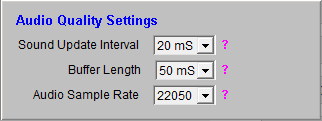
To minimise latency, or the time lag between an EEG event and its feedback as sound, buffer duration must be minimal. Set it to a value as low as possible - if you set it too low the audio will sound distorted by crackles.
The sound update interval is the interval between calculations of volume - it should be less than or the same as the buffer length.
Sound Volume Range
In proportional screens where sound volume varies, there are controls to set the range over which volume varies. Here is an example:
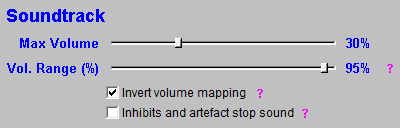
There is a maximum volume slider - I hope it's obvious what this does. In effect it sets the volume when the feedback parameter is at or above the threshold upper level.
The volume range slide is a way of setting the minimum volume (i.e. the volume when the feedback parameter is at or below the lower threshold level). Setting the range to 100% means that the sound goes completely silent when the parameter drops low enough. But this is not necessarily the most desirable way of configuring the feedback, as it could cause the trainee to become frustrated or anxious or disheartened. Setting the range to say 90% means the sound can go quiet but never silent.
Inhibits & Artefacts
In MBTT, inhibits are parameters that are trained down (or at least held in check) but rather than being directly fed back, they modulate the feedback of the main parameter. They have special thresholds which have only one level.
How do inhibits affect feedback?
In points-based and stop-go feedback, the situation is straight-forward: if inhibit parameters are above their threshold levels, no feedback is delivered.
In proportional feedback, the feedback is frozen (i.e. doesn't update) for as long as an inhibit is above its level.
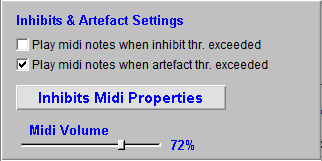
In addition, in most feedback screens there are options to warn the trainee that inhibits are exceeding their level by playing midi sounds. Midi sounds can also be played when the software detects artefact.
Here are the controls for these midi alerts:
Points-Based & Stop-Go Feedback Settings
Earlier we saw that for points-based feedback, there are ways to shape the feedback by setting sustain and refractory periods. Points screens have drop-down controls to set these periods:
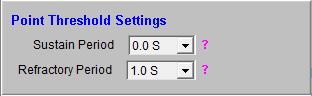
Stop-go feedback screens also have sustain and refractory period controls.
Feedback Screens Listing
This section lists the feedback screens that you can select from, for standard or basic protocols, and explains their operation. They are grouped into four: proportional screems, points-based screens, stop-go screens and advanced screens.
Proportional Feedback Screens
To recap: in a proportional feedback, either a volume or a visual brightness varies smoothly between a maximum and a minimum. The threshold defines the mapping between parameter and feedback such that the threshold levels represent the maximum and minimum amounts of feedback.
Recall that some of the proportional screens don't automatically take account of training direction, but instead give you an option to invert the feedback mapping.
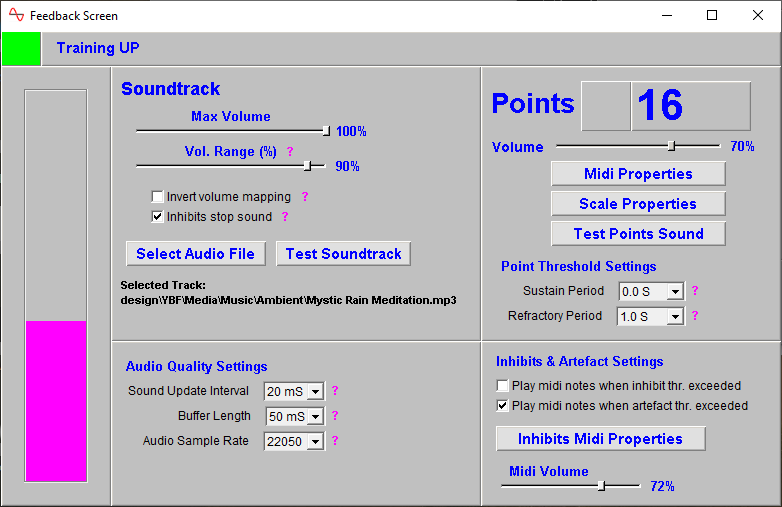
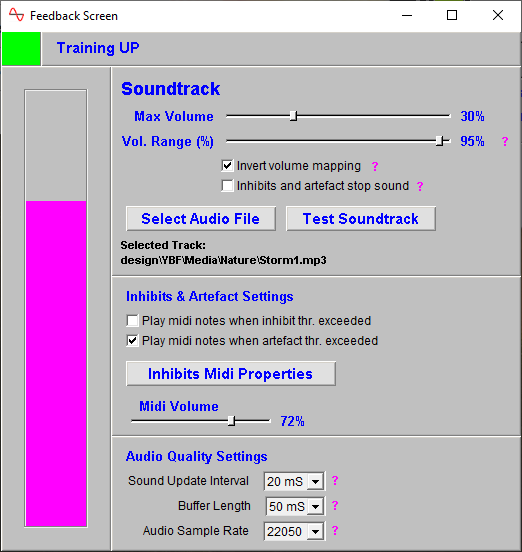
Soundtrack - Basic
A soundtrack is played whose volume is varies with the feedback parameter.
The track is played in a loop - when the end is reached it immediately starts playing at the beginning.
Note, in this screen the feedback volume does not take account of the training direction. If you want to train down, and reward decreases in the feedback parameter, you need to check the invert option.
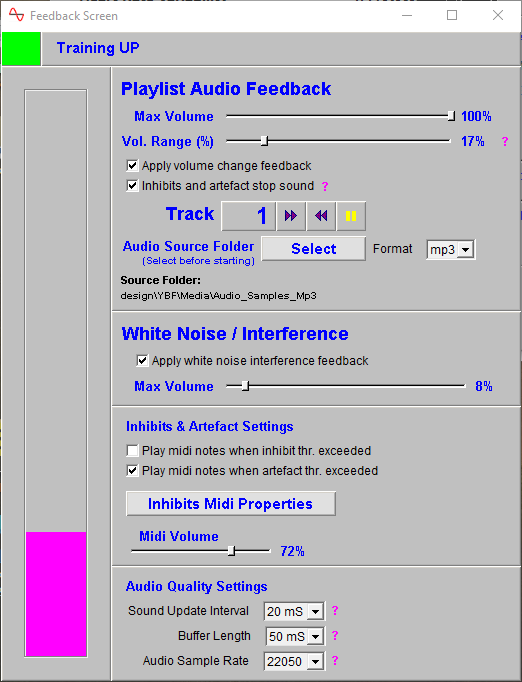
Soundtrack - Playlist
This similar to the previous option, except that a set of tracks is played in sequence. Again volume varies with feedback parameter.
This screen was originally conceived to work with audio books, which are divided up in to chapters, one track per chapter.
There is an option to have an additional (or alternative) feedback stream in the form of noise “interference” - white noise is played at a variable volume, which obscures the sound of the track, to some extent.
The soundtrack sequence should be a set of files in the same folder (which the user nominates). The filenames should begin with their number in the sequence so that the software can order them properly.
Note this screen automatically takes account of direction of training. If the protocol is down-training, then falls in the training parameter give increases in track volume and decreases in white noise volume.
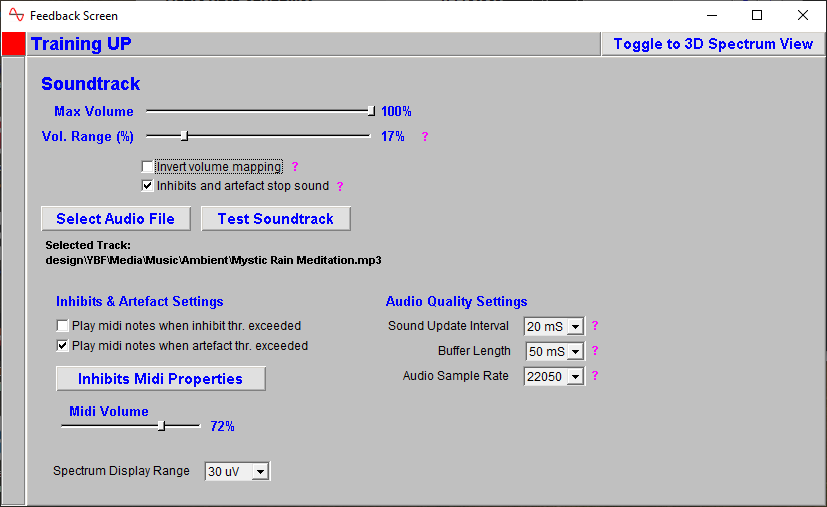
Soundtrack with 3D Spectrum
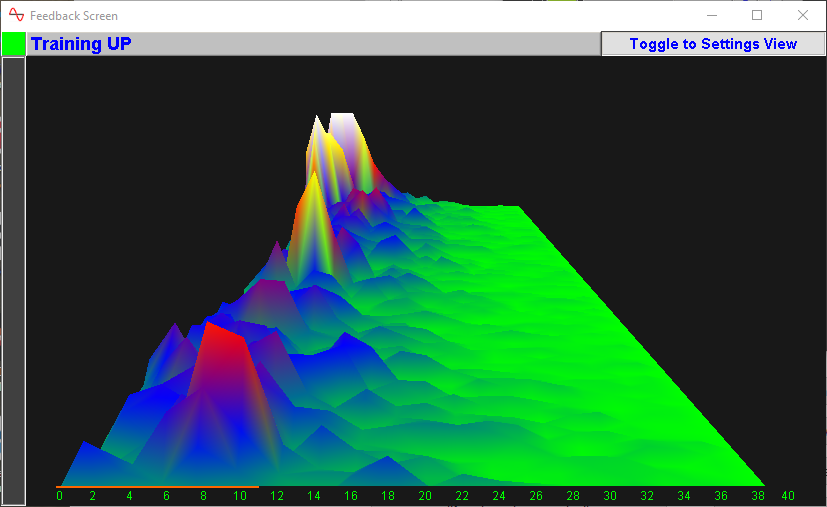
This screen is essentially the same as basic soundtrack, but it additionally shows a 3D spectral (FFT) display of the EEG. The 3D spectrum is of some interest perhaps, but not necessarily very effective as an aid to learning.
The settings are shown below:
When a training period starts, the view switches to the spectrum:
Basic Tone Feedback
A simple tone is played, whose pitch and / or volume varies with the feedback parameter.
There are drop-down controls for each of volume and pitch, which set how they are to vary (i.e. as feedback or as fixed).
This screen does not take account of the protocol's training direction. Instead, both volume and pitch have “invert mapping” options. This means that you can set the reward to be a low-pitched sound, if it suits you.
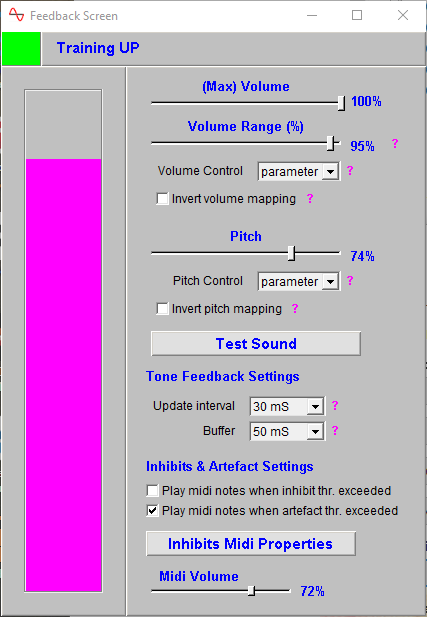
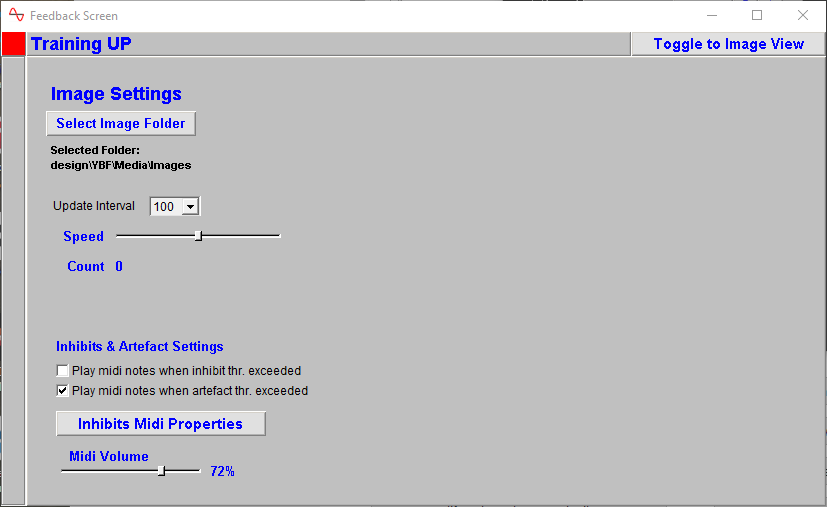
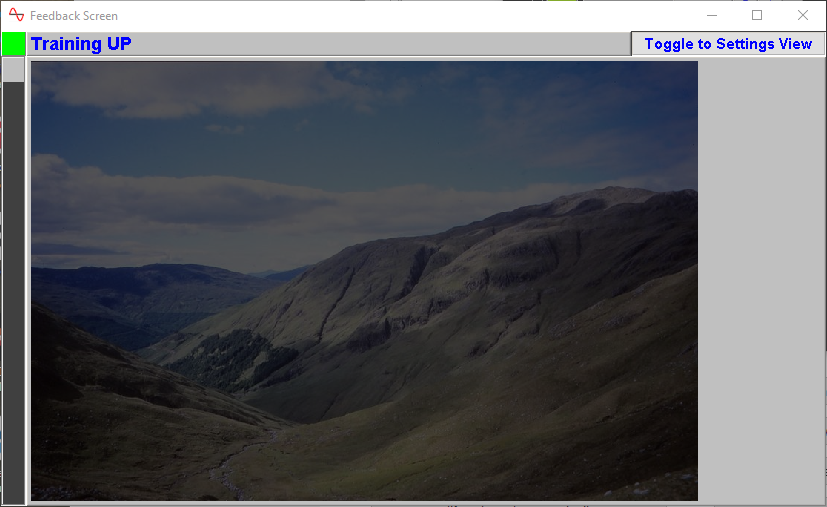
Image Brightness
This screen shows an image which starts of fully dark, and whose brightness then increases as the feedback parameter moves in the desired direction. It is the speed of brightening which maps to the feedback parameter - at the lower threshold level, the brightness rate of change is zero and it's not changing, while at the upper threshold level, the brightness varies the fastest.
The screen automatically takes account of the protocol's training direction so that desired changes, whether up or down, will increase brightness.
When full brightness is reached, the software loads a new image which starts off dark, and brightens as before.
When a training period starts, the screen toggles to the image view:
Video Speed Feedback
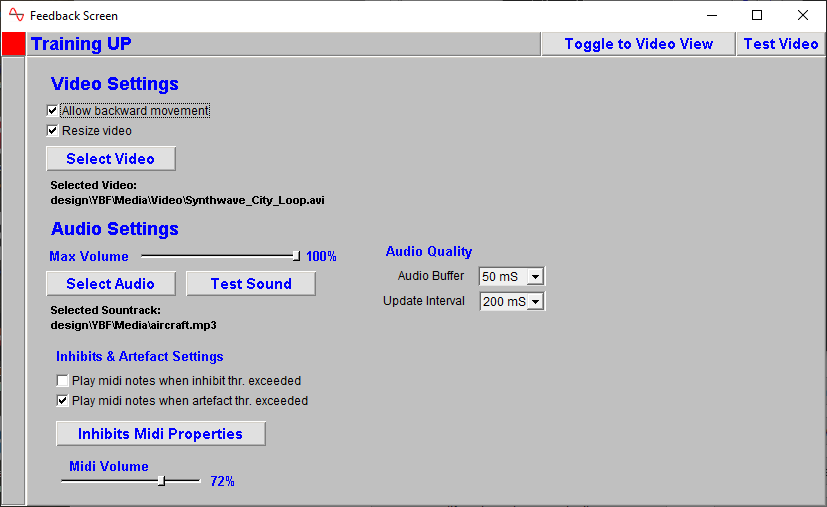
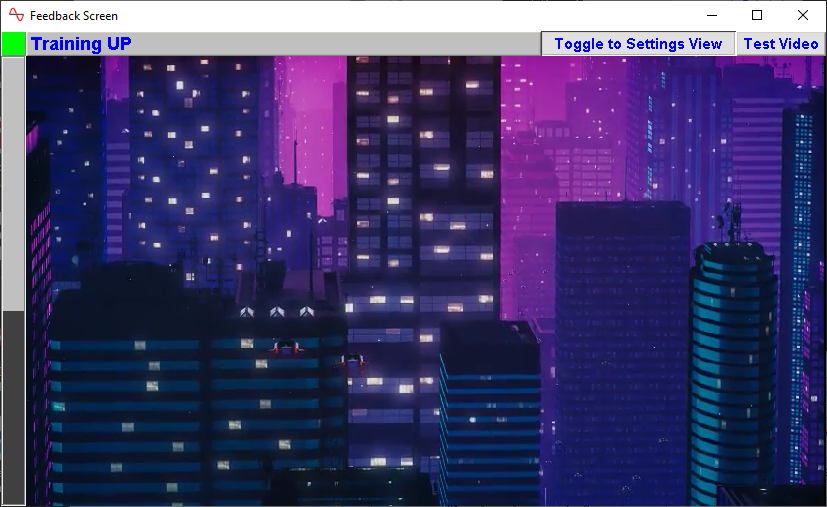
This screen plays a video whose speed varies with the feedback parameter. At or above the upper threshold level, the video plays at full, normal speed, and below that it is slower. At the lower limit or below the video freezes or even moves backward (depending on whether an option to allow backward movement is set). Clearly this kid of feedback would only work with certain kinds of videos. Animated or flight videos work well.
As an additional stream of feedback, you can play a soundtrack at variable volume. The default soundtrack selection is an engine sound which goes quite well with flight videos.
When a training period starts, the screen toggles to the video view:
Midi Feedback - Volume
In midi feedback, musical notes are played repetitively. In this version, the volume varies with the feedback parameter. You can adjust the interval between notes.
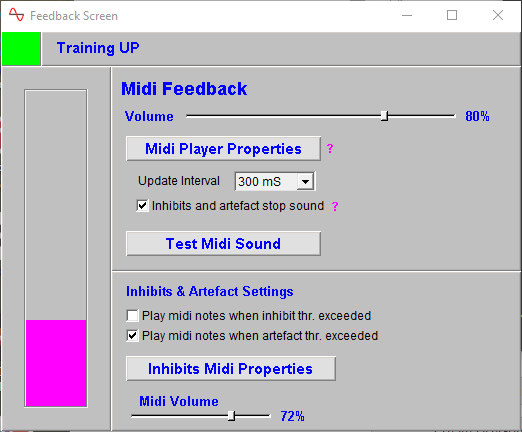
Midi Feedback - Pitch
In midi feedback, musical notes are played repetitively. In this version, the volume varies with the feedback parameter. You can adjust the interval between notes.
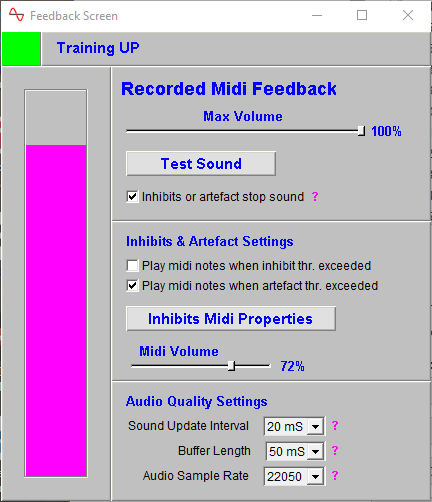
Recorded Midi
The recorded midi feedback screen is similar to the tone feedback screen, except rather than playing a very basic sine-wave tone, the sound is a recording which sounds much more pleasant to the ear.
The volume increases proportional to the feedback parameter, and it addition to this, as the parameter increases, more recordings come in which add to make a pleasant-sounding chord.
The design automatically accounts for the protocol's training direction, so that when down-training the above changes happen as the parameter falls.
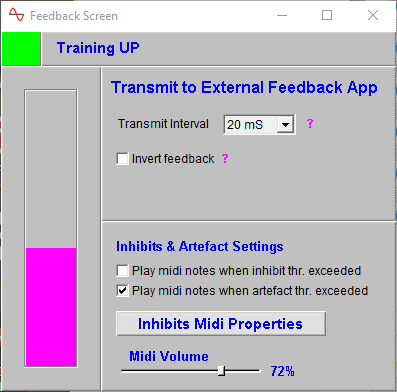
Transmit to External App
There are a set of feedback screens which transmit the feedback out of BioEra to make it available to external apps such as the Shadow utility described earlier.
The first and most basic simply transmits and nothing else, except for the usual bar graph and inhibit midi options.
Protocol training direction doesn't affect the function, but there is an option to invert the mapping of the feedback data, so that when selected the transmitted number gets smaller as the feedback parameter increases.
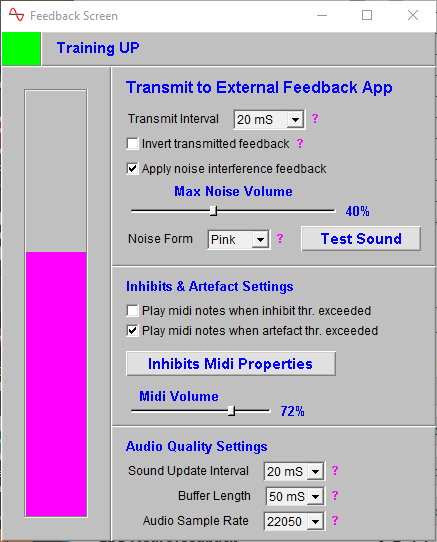
Transmit + Noise Interference
This is another screen that transmits feedback data out of BioEra, just as the basic transmit design just described does, except that additionally there is another feedback stream in the form of noise with variable volume. You can set the noise to be white or pink - these are slightly different-sounding hisses.
The idea of using noise feedback is that it gives a kind of audio mask that interferes with some other audio that is playing, perhaps a YouTube video that the trainee is watching. It's an audio equivalent to the “shadow” feedback described earlier. The volume of the noise is proportional to the feedback parameter.
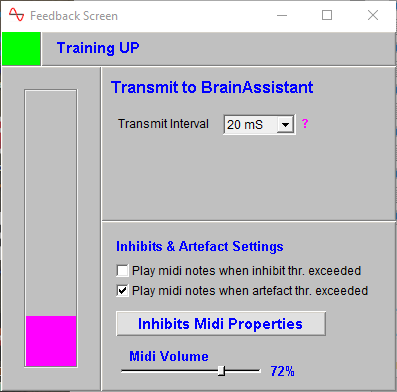
Transmit to BrainAssistant
This third transmit screen transmits feedback data out of BioEra, but this time in a format that is readable by BrainAssistant, a neurofeedback games software.
Basic Chart (Template)
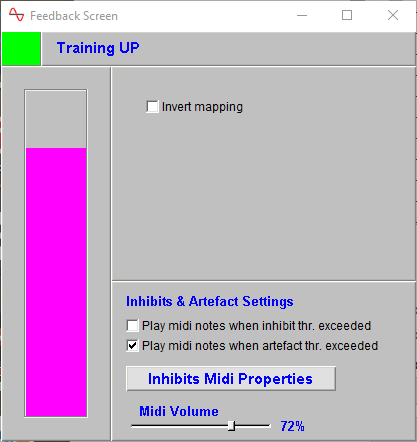
This final feedback screen does nothing other than show the usual bar graph and inhibit / artefact feedback options.
Its purpose is that it is a template from which developers can build their own feedback screens. It exists as a BioEra design, but it has no password lock as the other designs do.
If you have skills in graphical programming using BioEra, this may be of some interest to you, but for most users it would probably be considered as overly challenging from a technical standpoint.
Points-Based Feedback Screens
To recap: the feedback is a discrete event which is contingent upon the threshold conditions being met. In the simplest case, a points tally is incremented by one. In most cases a point is marked by a brief sound.
Basic Points
In this screen, a points tally is kept, and a (recorded) sound is played to mark each point.
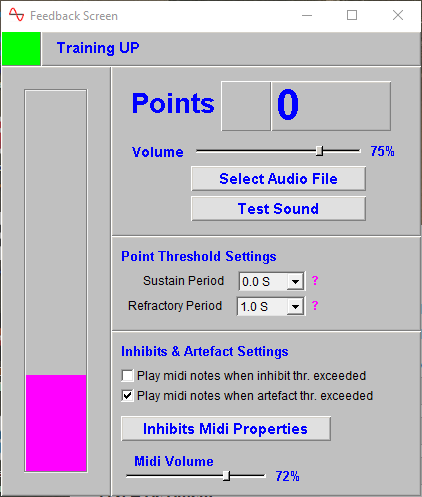
Midi Notes Progression
This simple screen offers a points tally, and also plays musical midi notes in a sequence of rising pitch.
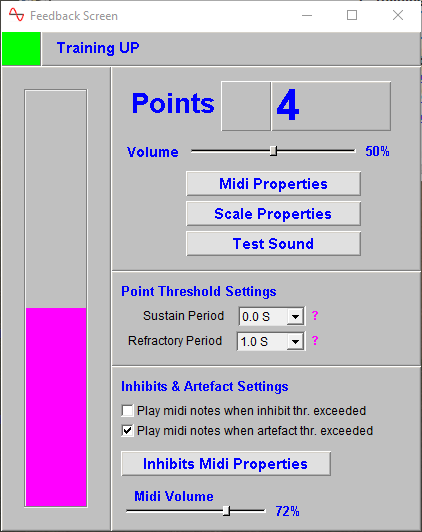
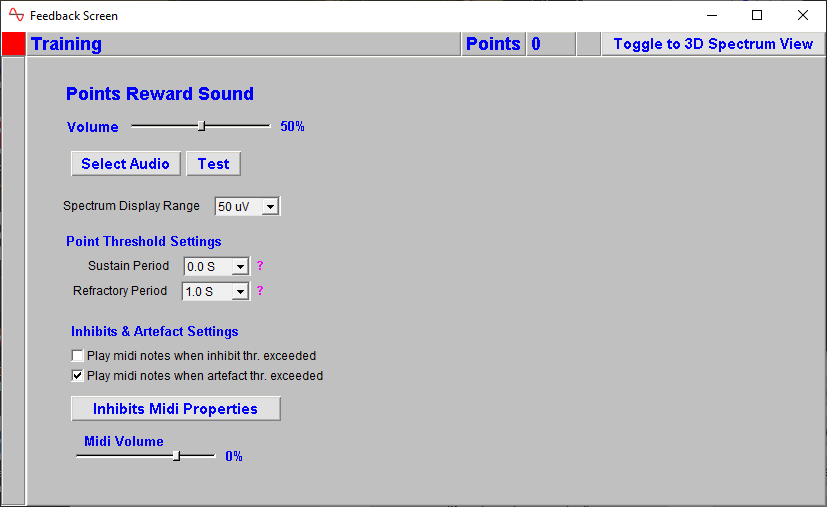
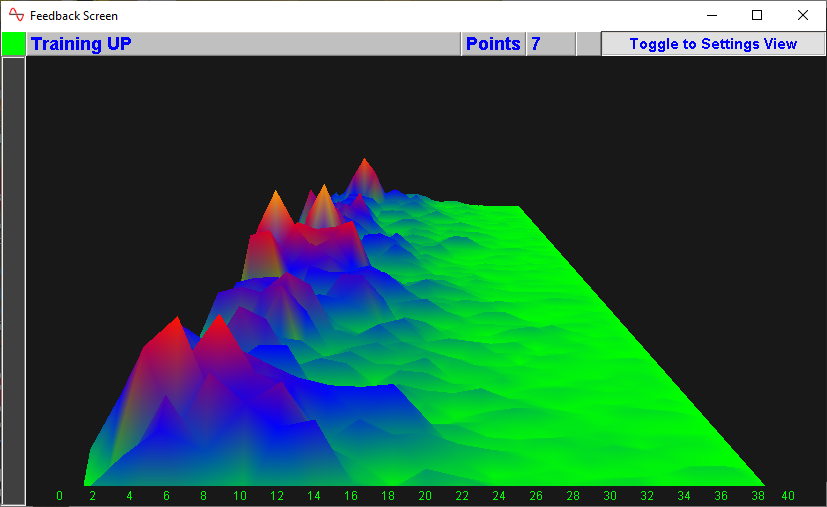
Basic Points with 3D Spectrum
This screen is essentially the same as basic points, but it additionally shows a 3D spectral (FFT) display of the EEG. The 3D spectrum is of some interest perhaps, but not necessarily very effective as an aid to learning.
The settings are shown below:
When a training period starts, the view switches to the spectrum:
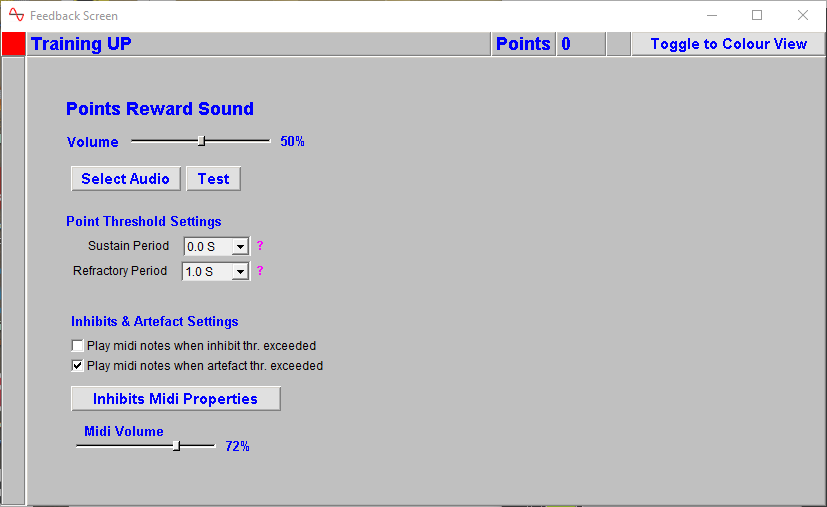
Colours Progression
Here we have the usual points tally, but most of the screen's “real estate” is taken up by a coloured panel. For each point scored, the colour changes, progressing through the spectrum (colours of the rainbow), and additionally a sound is played for each point.
When a training period starts, the view switches to the colour panel:
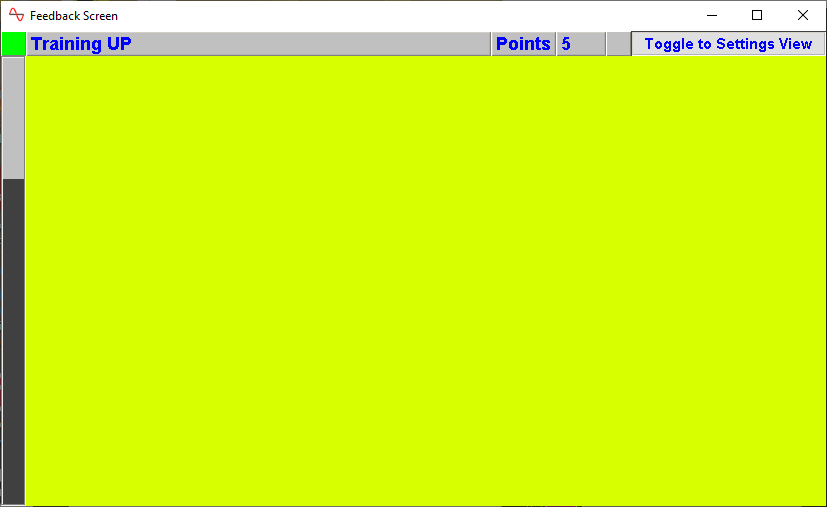
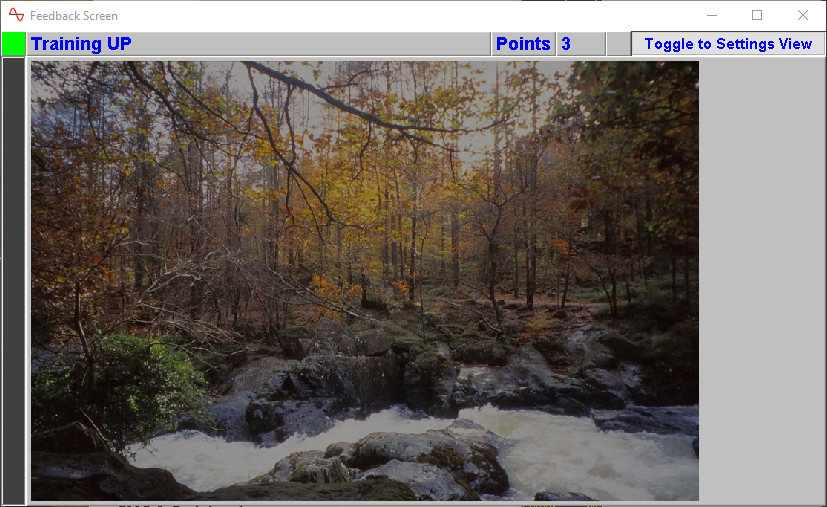
Image Brightness
This screen shows an image which starts of fully dark, and whose brightness then increases as the feedback parameter moves in the desired direction. The brightness jumps in steps, and only changes when a point is scored. As usual there is a points tally, and sounds are played for each point.
When full brightness is reached, the software loads a new image which starts off dark, and brightens as before.
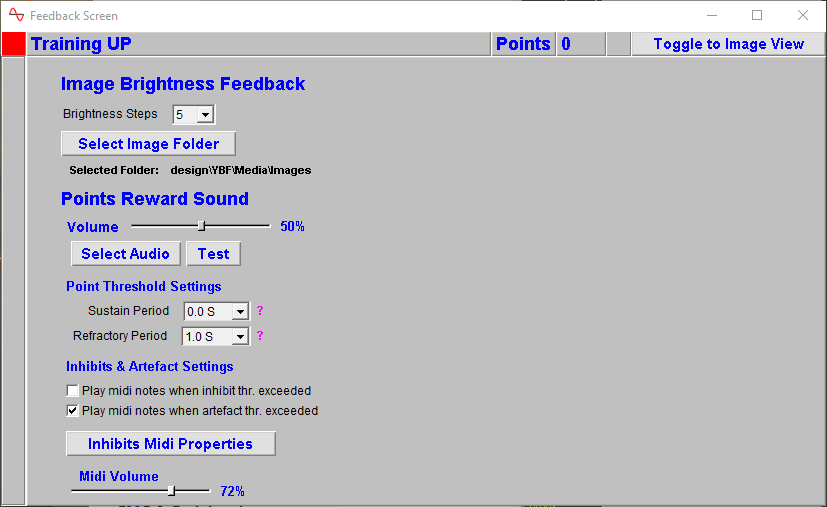
When a training period starts, the view switches to the image:
Pacman Game
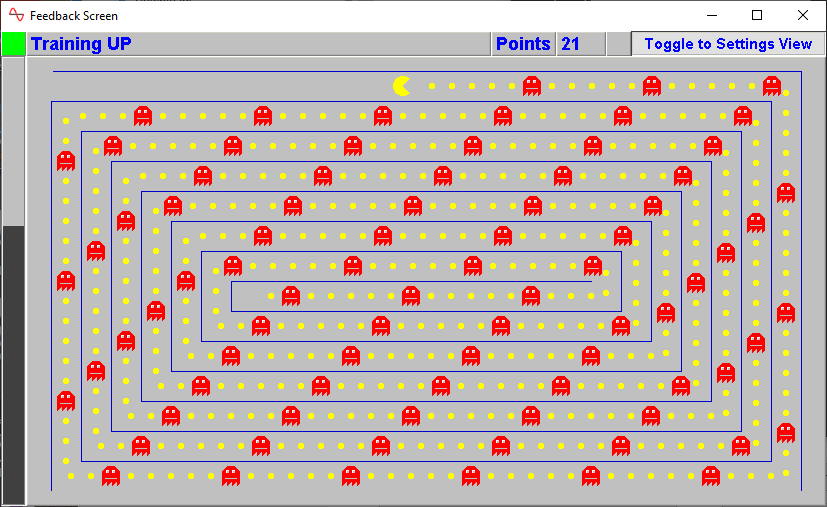
In this screen we have a simple pacman game - for each point scored, the pacman eats a pac-food, and a sound is played. As usual we have a points tally.
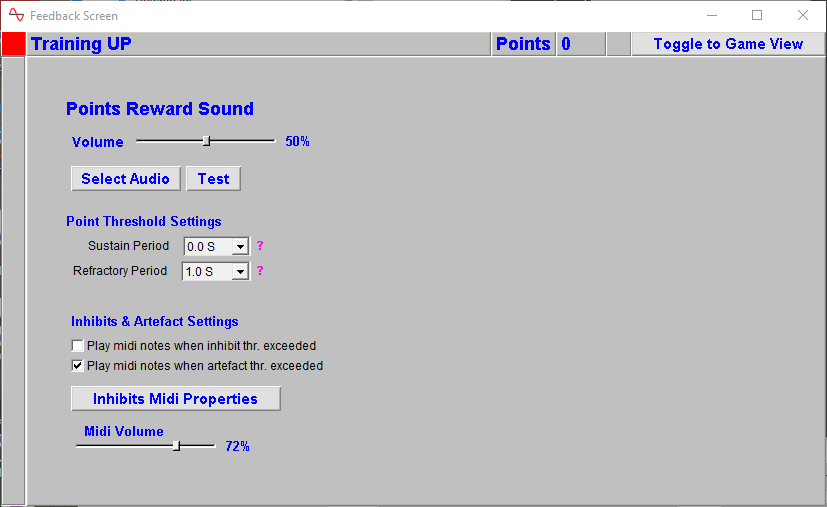
When a training period starts, the view switches to the game:
Stop-Go Feedback Screens
Stop-go screens are conceptually very simple and don't require much explanation. The feedback is activated when the threshold condition is met, otherwise nothing is happening.
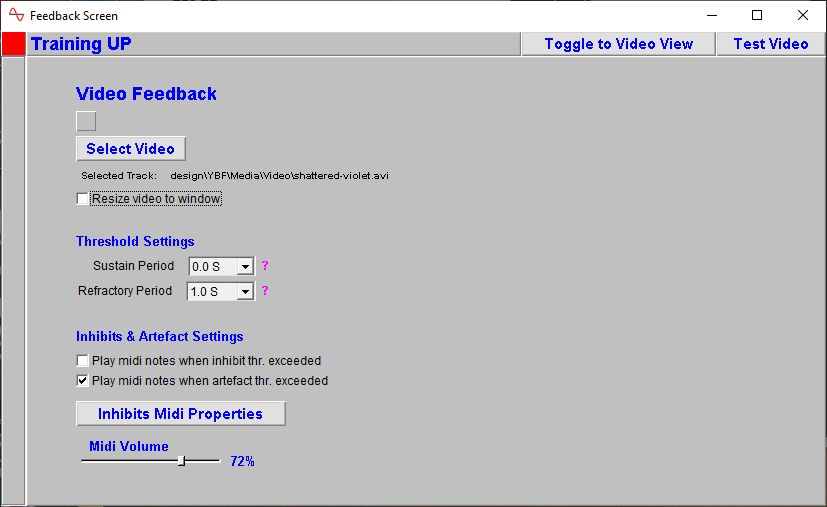
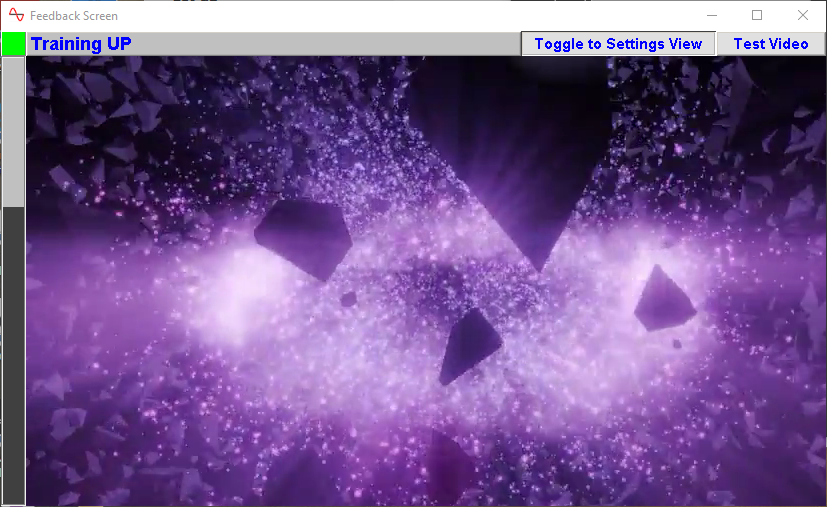
Video with Stop-Start Feedback
A video plays when the threshold condition is met, and stops otherwise. We start in the settings view:
When a training period starts, we switch to the video view:
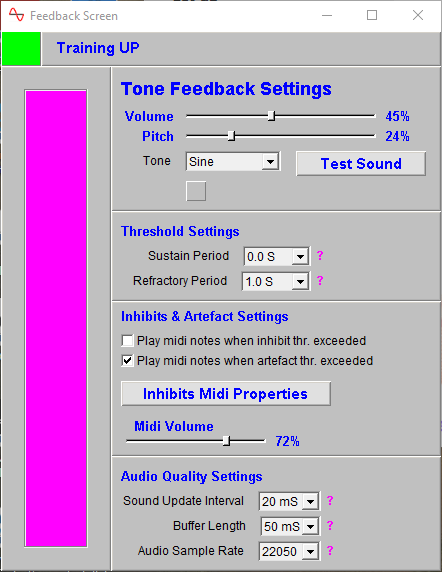
Tone with Stop-Start Feedback
A simple audio tone plays when the threshold condition is met, and stops otherwise.
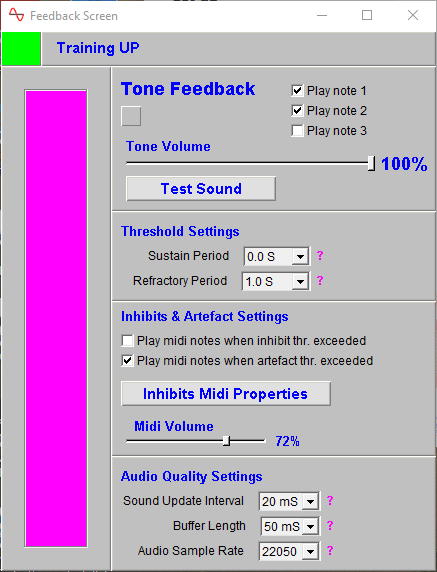
Midi Tone with Stop-Start Feedback
A musical midi tone plays when the threshold condition is met, and stops otherwise. You can choose between three notes (pitches) or any combination thereof.
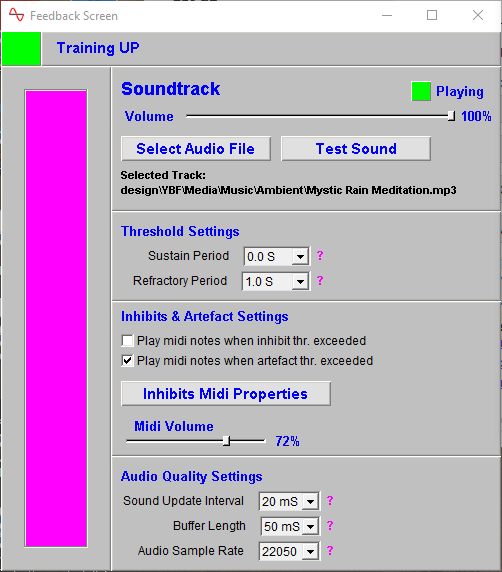
Sountrack with Stop-Start Feedback
A soundtrack plays (with fixed volume) when the threshold condition is met, and stops otherwise.
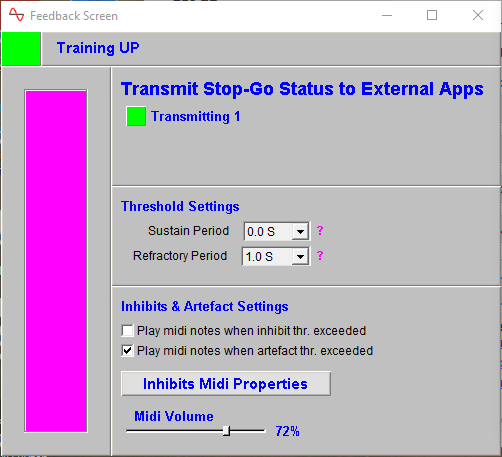
Transmit to External App with Stop-Go
This screen transmits the current status as one or zero to external apps. When the threshold condition is met, 1 is transmitted otherwise 0.
Advanced Feedback Screens
The advanced feedback screens either offer a combination of proportional / points-based / stop-go feedback, or are more complex forms of the basic screens already presented.
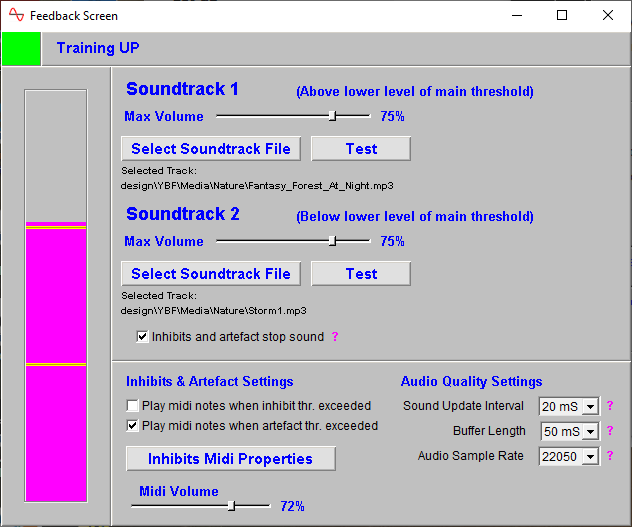
Dual Soundtrack, Proportional
Plays a primary sound file when main threshold ratio is above zero, with variable volume (i.e. reward soundtrack) and then a second soundtrack when the main feedback parameter ratio drops below zero, also with proportional volume.
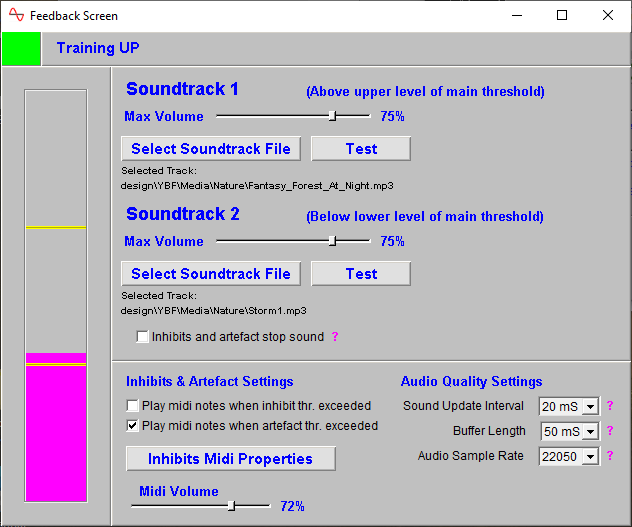
Dual Soundtrack, Stop-Go
Plays a first soundtrack file when main threshold ratio is above one, and then a second soundtrack when the main parameter ratio drops below zero. Both soundtracks have a set volume.
Proportional-Volume Soundtrack + Points
Combines proportional soundtrack feedback with points feedback. The soundtrack volume varies linearly with the feedback parameter, plus points can be scored which are marked by midi notes.