Basic Skin Temperature (ST) Application User Guide
Contents
- Introduction & launching the application
- Parameters
- Working with the Basic Skin Temperature Application (User Interface)
- Report Functionality
Introduction
This guide introduces the Skin Temperature biofeedback application, part of the Mind-Body Training Tools suite. MBTT applications are designed to train self-regulation skills, which I sometimes call mind-body skills.
This guide aims to teach you how to use the software. For a more in-depth discussion of how ST biofeedback fits with coaching and therapy, see this Guide to Skin Temperature biofeedback, and also the Biofeedback Practitioner Training Course.
Skin Temperature (ST) is a useful biofeedback parameter because it can teach us about the stress response and how to manage it. ST change is driven at the physiological level by the Sympathetic Nervous System.
The guide assumes that you already have a basic knowledge of how to work with Mind-Body Training Tools software. If not, I suggest you read this Introductory Guide to Working with MBTT.
Launching The Application
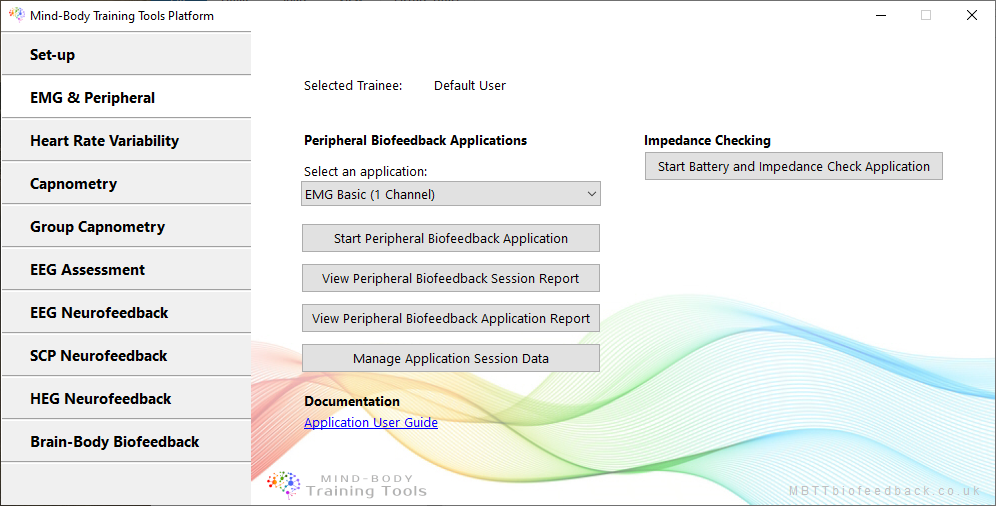
To launch the application (after starting the platform program) first click on the "EMG & Peripheral" tab, then select the "Skin Temperature Basic" application from the drop-down list, then click the button to launch the app.
Parameters
The app works with a single parameter, skin temperature.
The application calculates the rate of change of ST - since for biofeedback training we're more interested in relative changes in ST more than actual values, the ST rate of change is a useful way to present ST feedback.
Working With The Basic Skin Temperature Application (User Interface)
The MBTT apps have a common design scheme. The intent is that learning to use one app, can be generalised so that other apps in the suite are easy to learn.
The apps generally have three windows:
- Main window, or trainer's window, containing parameter charts
- Threshold window - each app has at least one threshold, but there are usually more.
- Feedback window - in a sense, all charts and thresholds are giving feedback, but the feedback window contains controls for audio feedback plus more specialised feedback forms.
Main Window
The main window, shown here, follows the normal MBTT pattern of short term displays in the upper half, and a longer term trend chart in the lower.
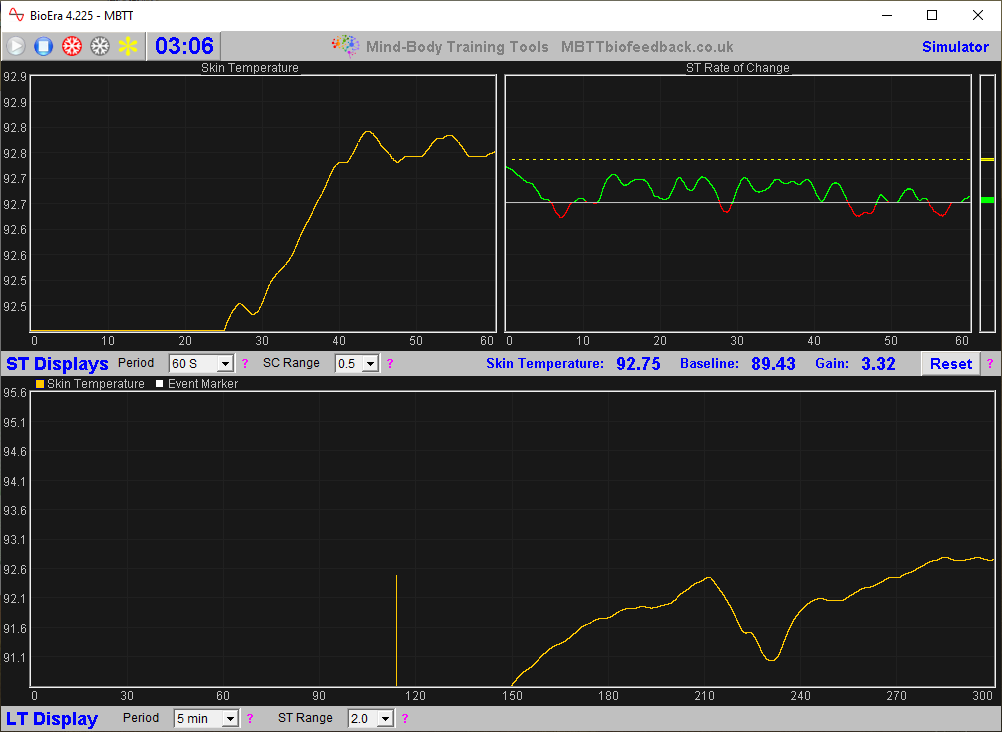
TO_DO This video gives a tour of the Basic Skin Temperature app.
Thresholds
The threshold window for the Basic ST app is shown here - there is only a single threshold.
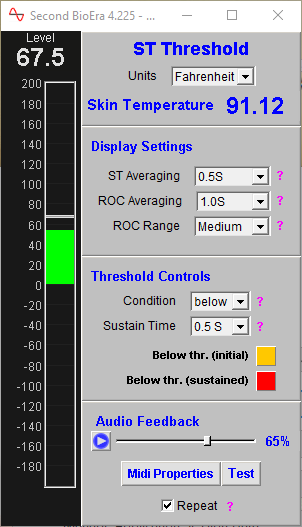
Notice that the threshold is based on ST rate of change rather than simply ST. (Again, this is because we're more interested in relative change.)
You can update the threshold levels by dragging them with your mouse.
You can learn more about how thresholds operate in Mind-Body Training Tools in this guide.
Audio Feedback
The application offers midi feedback, tone feedback, and threshold-based contingent audio feedback. Additionally, you can transmit feedback parameters out of BioEra, for use with external feedback applications, such as the “Shadow” Feedback Utility (which is part of the Platform program).
Threshold-Based Audio Feedback
To recap, the basic concept is that the software plays a sound (actually a midi note) whenever a threshold limit (level) is crossed.
The controls for threshold based feedback are found at the bottom of the threshold controls. There is a button to activate it / turn it off. A drop-down control sets the condition or contingency: for example if set to “above”, the feedback will sound whenever the parameter exceeds the upper level. “Below” means it sounds below the lower level, and “outside” means it sounds for either of these two.
You can change the midi “instrument”, and you can have the sound repeat for each breath that meets the threshold condition, or only the first time the level is crossed.
Audio Feedback Window
The controls for audio feedback, aside from the threshold-based audio feedback discussed above, are found in a separate window shown below:
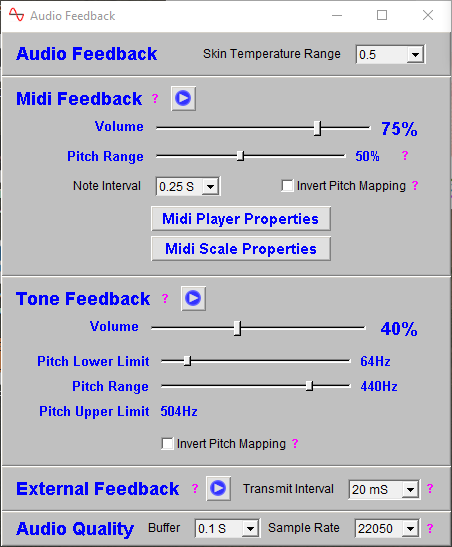
In midi feedback, a musical note is played whose pitch varies with the selected feedback parameter. Again you can opt to invert the pitch mapping.
You can select which parameter to use as the basis of feedback using a drop-down list control, and you can invert the pitch mapping if you wish, so that a higher score produces a lower tone.
Tone feedback works in the same way as midi feedback, except that a simple, constant tone is played in place of midi notes. Tone feedback could be said to have greater sensitivity, since the pitch varies continuously rather than being restricted to musical pitches (A, B, C# etc.) as midi feedback does.
Auto-Range Feature
Both midi and tone feedback have an auto-range feature, meaning they work in a similar way to trend charts. When the signal moves above or below the chart range, the chart resets so that the signal is in the middle again. The scale is maintained but the range shifts up or down.
In a similar way, if audio feedback pitch moves to the limit of the pitch range, the sound resets so that the pitch is in the middle of the range again (and the same scale is maintained).
Audio feedback is demonstrated in the following video TO_DO.
Report Functionality
Mind-Body Training Tools allows you to generate session reports and application reports.
The controls for report generation are found in the platform window, in the EMG & Peripheral tab shown towards the beginning of this document. You need to have selected the right application from the drop-down list - in this case Basic ST.
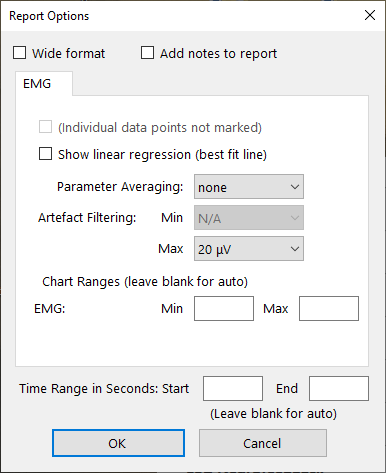
A session report shows charts and tables for the feedback parameters summarising the whole session. You'll be asked to select one particular session, and given report options. This figure shows the report options for EMG but it's almost the same for ST:
The application report shows the variation of the feedback parameters across multiple sessions. Typically for each feedback parameter, the software generates line charts for session means, session maxima and session minima.
Report functionality is described in greater depth here.
You can see sample reports here:
Sample Session Report from the EMG, GSR and Skin Temperature application
Sample Application Report (not from the ST application).