The “Shadow” External Feedback Utility User Guide
Contents
Introduction
Each app in the MBTT suite offers simple visual and auditory feedback, for example in the form of parameter charts. The Shadow Utility offers a more advanced option for presenting feedback, which require transmission of data out of BioEra.
Recall the basic architecture of the product: Mind-Body Training Tools consists of two distinct software programs:
- BioEra, best understood as a software toolkit for developing biofeedback and neurofeedback applications
- The Platform program, which is a “front-end” for the apps, and manages and organises session data.
The Shadow utility is part of the Platform program in Mind-Body Training Tools, and can read data transmitted by the BioEra apps, and then use it for specialised feedback. It can thus work with any of the apps in the MBTT suite (since they can all transmit data).
(Technical note: to transmit data, BioEra uses a technology called TCP/IP which is the basis for internet communications. In principle it's possible to develop other programs to read and utilise this data - this may be of interest to technically minded users.)
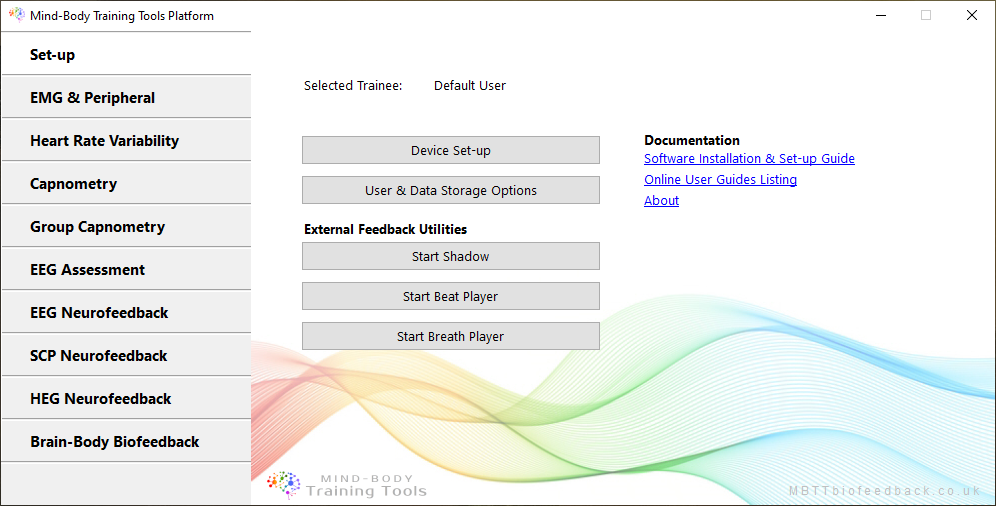
The Shadow utility can be launched by clicking a button located in the Set-up tab of the Platform program, shown below.
The Basic Concept of Shadow Utility Feedback
The shadow delivers continuous and proportional feedback when used in combination with independent media, such as a YouTube video or a Kindle Reader (i.e. Kindle software app for windows).
We'll take video feedback as an example.
Suppose you're training to raise EEG alpha amplitude. Again, the feedback parameter (alpha amplitude in this case) varies continuously over a range.
- Our video plays continuously, but its brightness varies from dark to bright (in this case ‘bright’ simply means the video looks normal, while ‘dark’ means it opaque or obscured).
- The brightness varies smoothly and proportionally with the feedback parameter: when alpha amplitude is relatively high the picture is bright, but darkens when alpha amplitude drops.
The Shadow utility implements this form of feedback.
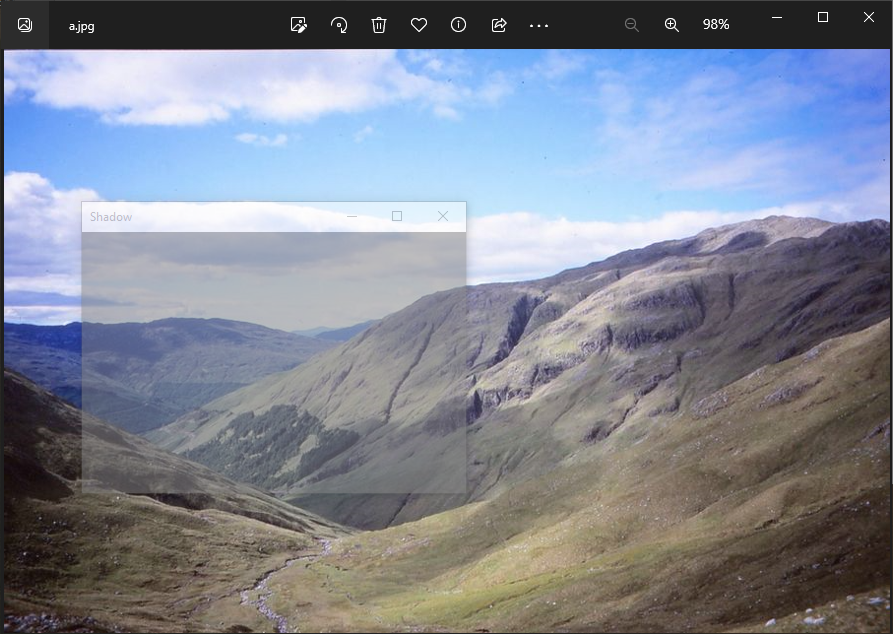
It works by creating a window which has variable opacity. You position this window over the top of another program running on your computer, for example a web browser showing a YouTube video. Then, during a session, the underlying window is proportionally revealed or obscured as the shadow window varies its opacity.
The screenshot below shows the shadow in operation - it's positioned over an image, but whereas in normal use you'd resize the shadow to cover the whole image, here it's smaller so you can see the effect.
It's a versatile feedback modality because it can be used with any other software, such as a DVD player or a text reader such as Amazon's Kindle reader. This means you can do task-based training, e.g. to improve concentration while reading.
Shadow Utility User Interface
When you click the button to launch the Shadow utility, two further windows are opened. The first is the control window, used to configure the shadow, and the second is the shadow itself.
The control window is shown below.
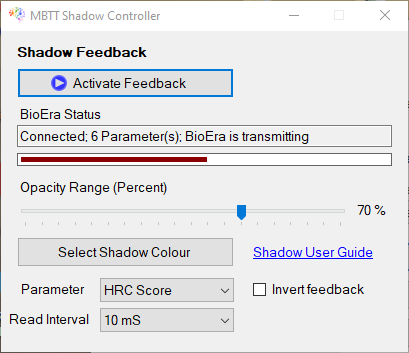
Most controls are self-explanatory but I make some comments below on the key controls.
- Parameter drop-down list: the (BioEra-based) biofeedback apps will typically transmit more than one physiological parameter, for example the Heart Coherence app transmits Heart Coherence Score, Breathing Rate and more. You need to select which parameter you want the shadow to follow.
- Read interval drop-down: this ultimately sets how frequently the shadow opacity updates. In theory, set this as low as you can without causing your computer to have performance problems, so as to minimize feedback latency. (In practice, some parameters such as Breathing Rate don't change very frequently and a few milliseconds of latency makes little or no difference.)
- Opacity Range slider: if set to 100%, this would mean the Shadow opacity would completely obscure the video (or reader, etc.) which may not be what you want - it could make things overly frustrating for the trainee. Setting it to something like 70% means the video would go darker but you'd still be able to make it out.
- Invert feedback checkbox: checking this means that the opacity mapping will be reversed: the video will be dark when the feedback parameter is high, and bright when the parameter is low. This is what you'd want if you were training to reduce the feedback parameter, e.g. an EEG “squash” protocol.
Threshold Levels
As with other forms of feedback, optimally setting the levels of the thresholds within the BioEra app is key. The two threshold levels define the maximal and minimal opacity, and thus the “working range” of the feedback parameter. When the parameter is above or below the threshold levels, there is no change in opacity, hence no feedback. The user should set the levels so that the challenge level is neither too difficult nor too easy.