The Beat Player External Feedback Utility User Guide
Contents
Introduction
Each app in the MBTT suite offers simple visual and auditory feedback, for example in the form of parameter charts. The Beat Player is one of a small number of utilities that offer more advanced options for presenting feedback, which require transmission of data out of BioEra.
Recall the basic architecture of the product: Mind-Body Training Tools consists of two distinct software programs:
- BioEra, best understood as a software toolkit for developing biofeedback and neurofeedback applications
- The Platform program, which is a “front-end” for the apps, and manages and organises session data.
The Beat Player utility is part of the Platform program in Mind-Body Training Tools, and can read data transmitted by the BioEra apps, and then use it for specialised feedback. It can thus work with any of the apps in the MBTT suite (since they can all transmit data).
(Technical note: to transmit data, BioEra uses a technology called TCP/IP which is the basis for internet communications. In principle it's possible to develop other programs to read and utilise this data - this may be of interest to technically minded users.)
The Beat Player utility can be launched by clicking a button located in the Set-up tab of the Platform program, shown below.
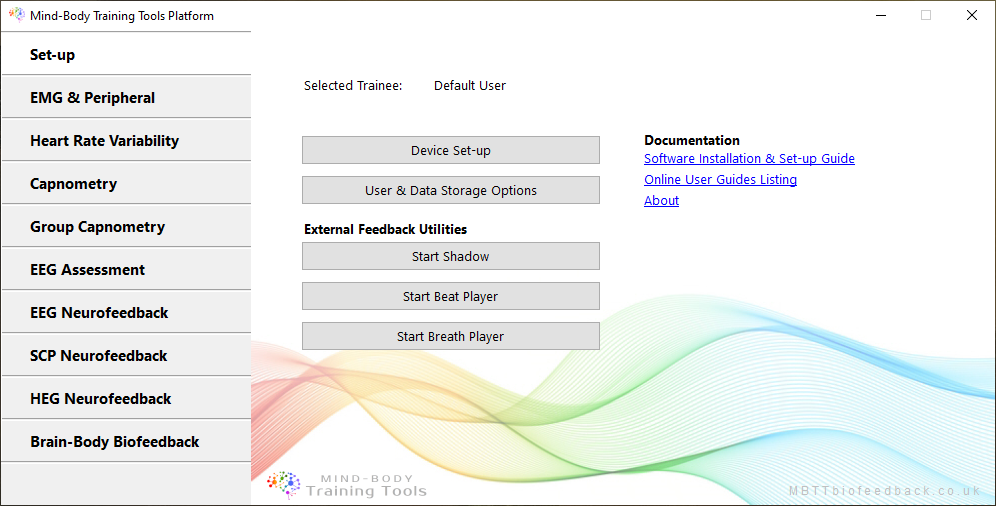
Overview of Beat Player Functionality
The Beat Player delivers continuous and proportional feedback in the form of a rhythmic sound or beats, and in addition you can use it to turn your computer monitor into a kind of strobe light, i.e. giving rhythmic flashes of light. In other words, the beat player is a kind of software Light & Sound machine, or Audio-Visual Stimulation (AVS) device, with the difference that the stimulation can convey feedback by varying pitch, volume or light intensity.
WARNING: YOU MUST NOT USE THE BEAT PLAYER IF YOU (OR YOUR CLIENT) IS PRONE TO SEIZURES, OR IS SENSITIVE TO STROBE-EFFECT LIGHTING.
Technical note: the audio beats are known as isochronic beats; the beat player can also be configured to play binaural beats (requiring headphones).
Beats and pulsed light may affect brain / mind state by causing entrainment, where EEG rhythms follow the pulsed stimulation. Alternatively AVS may possibly cause effects on the brain via dis-entrainment, or the suppression of EEG rhythms.
The Beat Player has two audio tracks (it generates two tones which can, to some extent, be independently configured). The sounds can be panned between left and right, which means you can configure it for a sort of bilateral stimulation, and even use it to support therapies such as EMDR by having the sound oscillate between left and right ears (when used with headphones).
TO_DO video demo
Beat Player User Interface
When you click the button to launch the Beat Player, a dialog window opens (shown below).
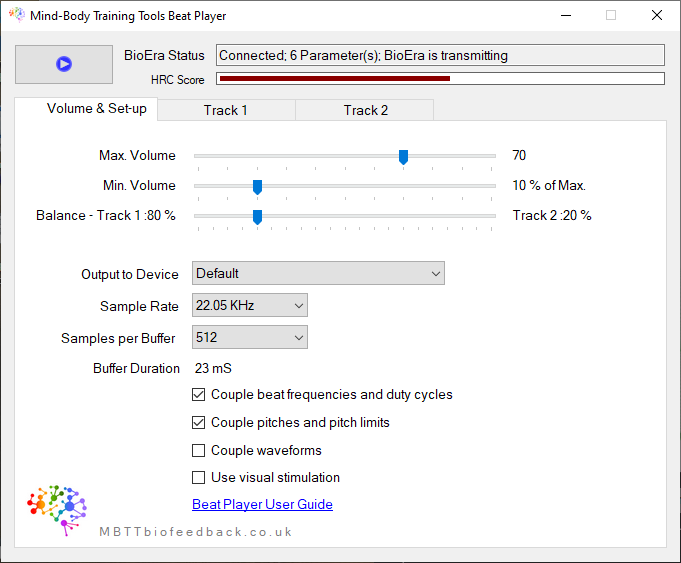
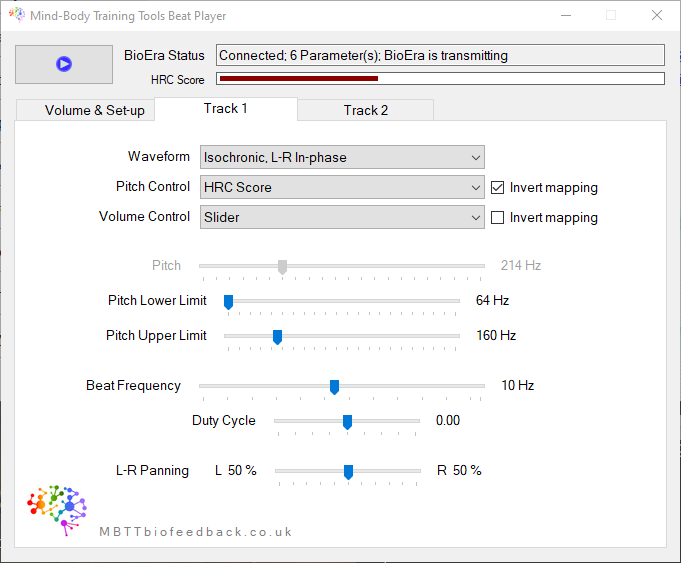
The controls for the Beat Player are multiple and spread between three tabs - the first is shown above, and the second tab and third tabs are equivalent, one for each track (see below).
How the Beat Player Conveys Feedback
The Beat Player presents continuous, proportional feedback of any parameter transmitted from the BioEra-based app:
- The volume can vary with the feedback parameter - indeed each of the two tracks can feed back a separate parameter. Alternatively you can set volume to offer no feedback.
- Pitch can also vary with feedback parameter - when the parameter goes higher, the sound pitch is raised, and vice versa. Or again you can set pitch to be fixed.
- Brightness of the flashing window (for visual stimulation) can also optionally vary with the feedback parameter, though its settings are tied to volume.
Volume Controls
On the set-up tab of the beat player you see some volume controls.
The audio can be set to convey feedback, or not. If the former, the volume will vary proportionally and continuously with the feedback parameter. The range of volume variation is set by two sliders. There is a linear mapping between the volume range, and the range of the feedback parameter defined by the two limits of its threshold.
There is also a slider control that adjusts the balance between the two audio tracks. Suppose you wanted to simplify things by just having one track - you could achieve that by setting this slider all the way to the left (100% track one).
Threshold Levels
As with other forms of feedback, optimally setting the levels of the thresholds within the BioEra app is key. The two threshold levels define the maximal and minimal opacity, and thus the “working range” of the feedback parameter. When the parameter is above or below the threshold levels, there is no change in the sound, hence no feedback. The user should set the levels so that the challenge level is neither too difficult nor too easy.
Configuring Feedback
As stated the Beat Player can present feedback via changes in pitch, volume or light intensity. Each track tab has two drop-down controls for configuring feedback, one for volume and one for pitch. In any of these drop-downs, you select the parameter that you want to give feedback for, or select “slider" to keep it constant.
Audio Quality & Feedback Latency
Feedback latency refers to the gap between a physiological shift or change, and the change in the feedback, due to the processing time required by hardware and software.
In general biofeedback and neurofeedback practitioners should aim to minimize latency, but there is inevitably a trade off with e.g. accuracy, and in the case of audio feedback, with sound quality.
The short version of how to do this is: make the “buffer duration” as low as possible without causing the sound to crackle and splutter. The precise settings needed will depend on how fast your computer is.
The longer and rather technical version is this: audio data is sent to your computer's sound card in packets, called buffers. The software calculates the data to fill the buffer, based on the current feedback parameter(s), then sends it to the buffer. While this buffer is playing the software is calculating the next one.
Therefore, the period of time it takes to play one buffer adds to the feedback latency.
Buffer length is set using two controls, sample rate and samples per buffer. If you set the buffer length too low, the sound will crackle. You should experiment to find the optimal setting that keeps the crackles to an acceptable level.
For simple tone feedback, it seems to make little difference if you have a low sample rate. Music needs a higher sample rate - audio CDs use a standard sample rate of 44.1 kHz.
Output Device
If your computer has more than one sound card (e.g. you may have an external USB-connected device) you can select which one to use in the Beat Player.
Waveforms
Each track tab has a drop-down control to set the type of waveform, which sets the nature of the sound produced. One option is white noise - this is a hissing sound which doesn't have any specific pitch. (If you use white noise, you can't convey feedback via pitch, only via volume.) You can still use beats with white noise.
The other options are isochronic beats and binaural beats (technically, both based on sine waves).
If you select isochronic beats you can opt to have the left and right channels in-phase (together) or out-of-phase (out of step). You can also set the “duty cycle” which is how long the pulse lasts, relative to the period of the beat. Lower duty cycle means shorter, sharper beats.
Visual Stimulation
If you check the visual stimulation option, a separate window is opened which brightens and darkens in step with the audio beats. The overall level of brightness (i.e. across cycles) can be set to convey feedback - it follows the same setting as track 1 volume (i.e. use the track one volume control drop-down to select which parameter to feed back).
Technical Note on Visual Stimulation
The flashing window works by picking up the same set of messages that the beat player sends to the sound card (i.e. the buffers of audio data). The brightness is thus updated at a rate of once per audio buffer. This means:
- The flashes of the window will be in sync with the beats of the sound.
- The buffer length, which affects latency of audio feedback, also affects the “quality” of the visual stimulation. You would want several updates of brightness within each pulse, so that the brightness can relatively smoothly wax and wane.
- Another factor to consider is that the Windows operating system may cause delays in the brightness changes, limit the quality or accuracy. In any case Windows' time resolution appears to be limited to of the order of 10mS.
- In general I recommend you don't use visual stimulation at high frequencies, by which I mean 10-15 Hz as an upper limit.