The Breath Player External Feedback Utility User Guide
Contents
Introduction
Each app in the MBTT suite offers simple visual and auditory feedback, for example in the form of parameter charts. The Beat Player is one of a small number of utilities that offer more advanced options for presenting feedback, which require transmission of data out of BioEra.
Recall the basic architecture of the product: Mind-Body Training Tools consists of two distinct software programs:
- BioEra, best understood as a software toolkit for developing biofeedback and neurofeedback applications
- The Platform program, which is a “front-end” for the apps, and manages and organises session data.
The Breath Player utility is part of the Platform program in Mind-Body Training Tools, and can read data transmitted by the BioEra apps, and then use it for specialised feedback. It can thus work with any of the apps in the MBTT suite (since they can all transmit data).
(Technical note: to transmit data, BioEra uses a technology called TCP/IP which is the basis for internet communications. In principle it's possible to develop other programs to read and utilise this data - this may be of interest to technically minded users.)
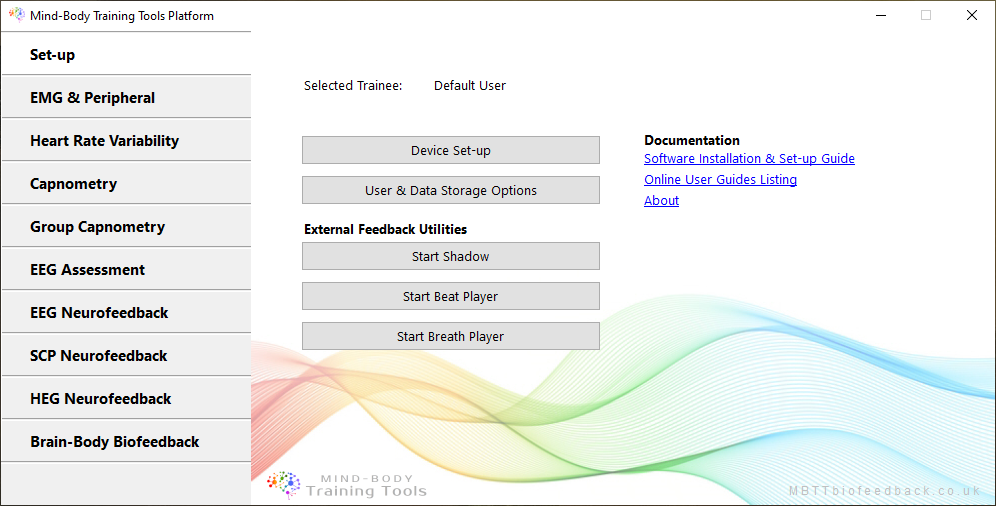
The Breath Player utility can be launched by clicking a button located in the Set-up tab of the Platform program, shown below.
Overview of Breath Player Functionality
The Breath Player is designed to give proportional and continuous audio feedback in the context of breathing training. It works by generating a tone which mirrors the breath - gently rising and falling in pitch and volume in step with the user's breath.
At an overarching level, this breath tone conveys feedback via variations in its pitch and volume. This feedback is only updated once per breath, meaning that it is only useful for parameters that change relatively slowly, for example Heart Coherence Score.
The Breath Player can directly follow the breath as measured by a biofeedback device, or it can be used as a breath pacer, whereby it generates a sound (with a fixed breathing rate, for example) that the trainee can follow.
This kind of feedback can be particularly useful when training in a meditative way, and particularly when the meditative focus is the breath (i.e. “mindfulness of breathing” practice). The feedback can be presented when the trainee has closed eyes, and it is designed to be unobtrusive, avoiding the need to divide attention between breath and biofeedback.
There is an additional channel for feedback, in the form of white noise (hiss sound) which can change independently of the breath, and is thus useful for feeding back more rapidly-varying parameters.
TO_DO video demo
Breath Player User Interface
When you click the button to launch the Breath Player, a dialog window opens (shown below).
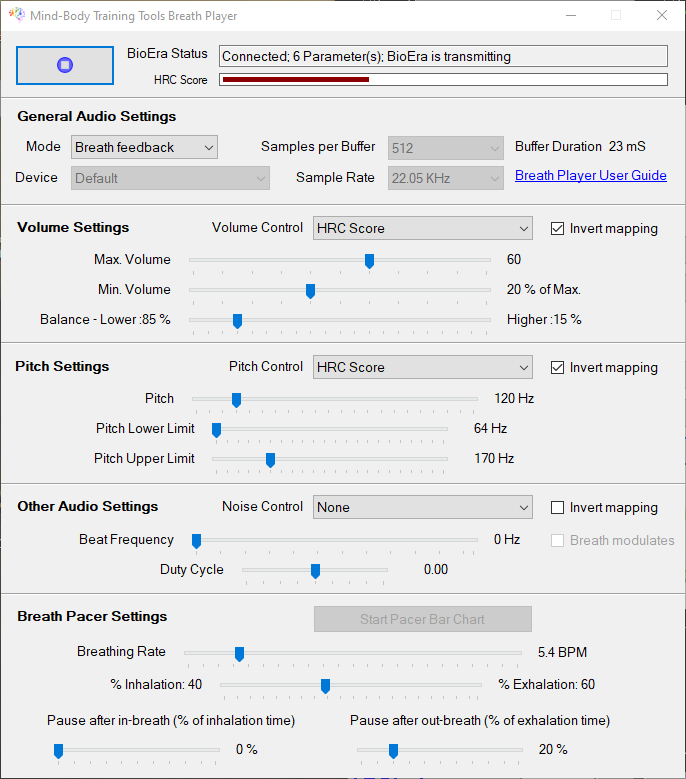
The controls are described in the following sub-sections.
General Audio Settings
- Mode - you can set the Breath Player to directly mirror the measured breath, or to pace the breath meaning that the trainee should breath in sync with the tone. If you select pacer mode, the breath pacer settings in the bottom panel of the dialog become relevant. These set the parameters of the pacing sound, such as breathing rate and inhalation: exhalation ratio.
- Device - if your computer has more than one sound card (e.g. you may have an external USB-connected device) you can select which one to use in the Beat Player.
- Samples per buffer and Sample Rate - together these set buffer duration and hence audio quality and feedback latency. (Technical note: audio data is sent to your computer's sound card in packets called buffers. While one buffer is being played, the next buffer is being calculated by the software.) Feedback can only be updated once per buffer, meaning that buffer duration should be as short as possible to minimize feedback latency, but not so short that it causes the sound to crackle and splutter. That said, for feedback parameters that change relatively slowly, this latency is not practically relevant.
Volume Controls
The breath tone volume can be set to convey feedback, or not. If the former, the volume will vary proportionally and continuously with the feedback parameter - a high reading of the parameter will produce a loud tone, and a low reading a quiet tone. There is a linear mapping between the volume range, and the range of the feedback parameter defined by the two limits of its threshold.
- Volume control drop-down - selects which parameter (of those transmitted by the BioEra app) on which to base feedback, or no feedback if “slider” is selected.
- Invert mapping check-box - if selected, the mapping between volume and parameter is inverted such that a high reading produces a quiet tone and vice versa.
- Volume max and min sliders - these define the range over which the volume varies, in the case that a feedback parameter is selected.
- Balance slider - note that the breath tone is actually composed of two notes, one high pitched and one low pitched, and having a fixed ratio between the two pitches. If you like you can shift the balance towards the deep note of the higher note. This is mainly a matter of aesthetics rather than affecting the actual feedback.
Pitch Controls
As for volume, the breath tone can present feedback via variations in its pitch, or it can be held constant from breath to breath. If the former, the pitch will vary proportionally and continuously with the feedback parameter - a high reading of the parameter will produce a high tone, and a low reading a deep tone. There is a linear mapping between the volume range, and the range of the feedback parameter defined by the two limits of its threshold.
- Pitch control drop-down - selects which parameter (of those transmitted by the BioEra app) on which to base feedback, or no feedback if “slider” is selected.
- Invert mapping check-box - if selected, the mapping between pitch and parameter is inverted such that a high reading produces a deep tone and vice versa.
- Pitch upper & lower limit sliders - these define the range over which the pitch varies, in the case that a feedback parameter is selected.
Noise Feedback & Other Settings
As mentioned above, it's possible to present feedback using an additional channel, namely white noise (a hiss sound) besides the breath tone. This is useful if you want to combine the breath tone with feedback of parameters that vary more quickly, i.e. they vary significantly within one cycle of breath.
The basic concept is that white noise, being not particularly pleasant, is used as a kind of interference that the trainee aims to minimise. Suppose you want to feed back muscle tension or EMG, which you want to keep to a minimal level. If and when the EMG signal drifts upwards, it turns into a hiss which alerts the trainee, who then relaxes to quieten the white noise.
- Noise control drop-down - selects which parameter to feed back, or none (meaning no noise at all).
- Invert mapping check-box - if selected, the mapping between noise volume and parameter is inverted such that a high reading reduces noise and vice versa.
- Beat frequency slider - if desired you can embed isochronic beats within the breath tone, meaning the sound is delivered in short pulses. Isochronic beats may trigger EEG entrainment, thus affecting brain state. The question of how and why this might be desirable is not covered here.
- Duty cycle slider - if isochronic beats are used, this sets the relative duration of each pulse within the beat cycle. A low setting gives short, clipped sounds.
Threshold Levels
As with other forms of feedback, optimally setting the levels of the thresholds within the BioEra app is key. The two threshold levels define the maximal and minimal opacity, and thus the “working range” of the feedback parameter. When the parameter is above or below the threshold levels, there is no change in the sound, hence no feedback. The user should set the levels so that the challenge level is neither too difficult nor too easy.